Every drawing tool, in a browser tab.
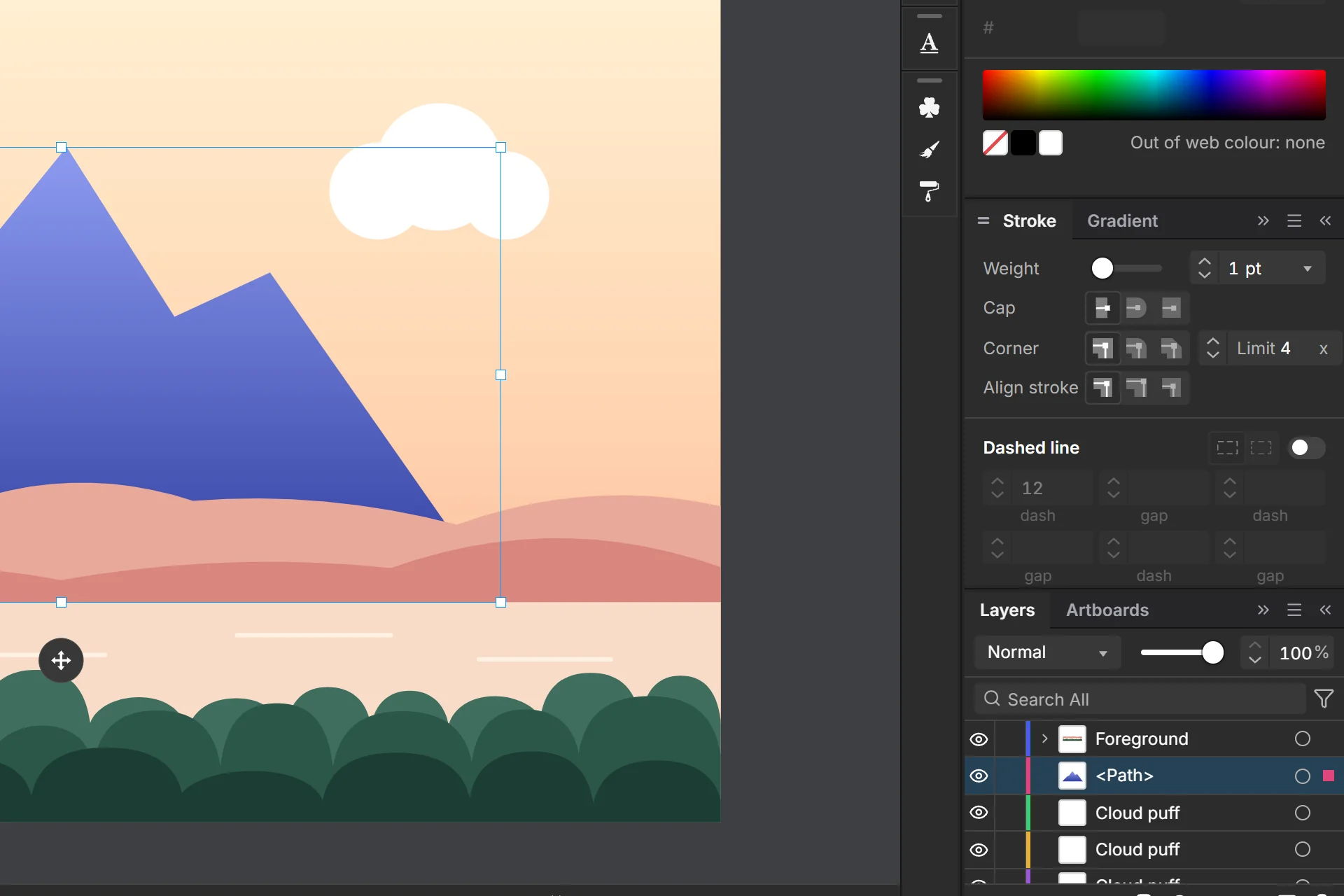
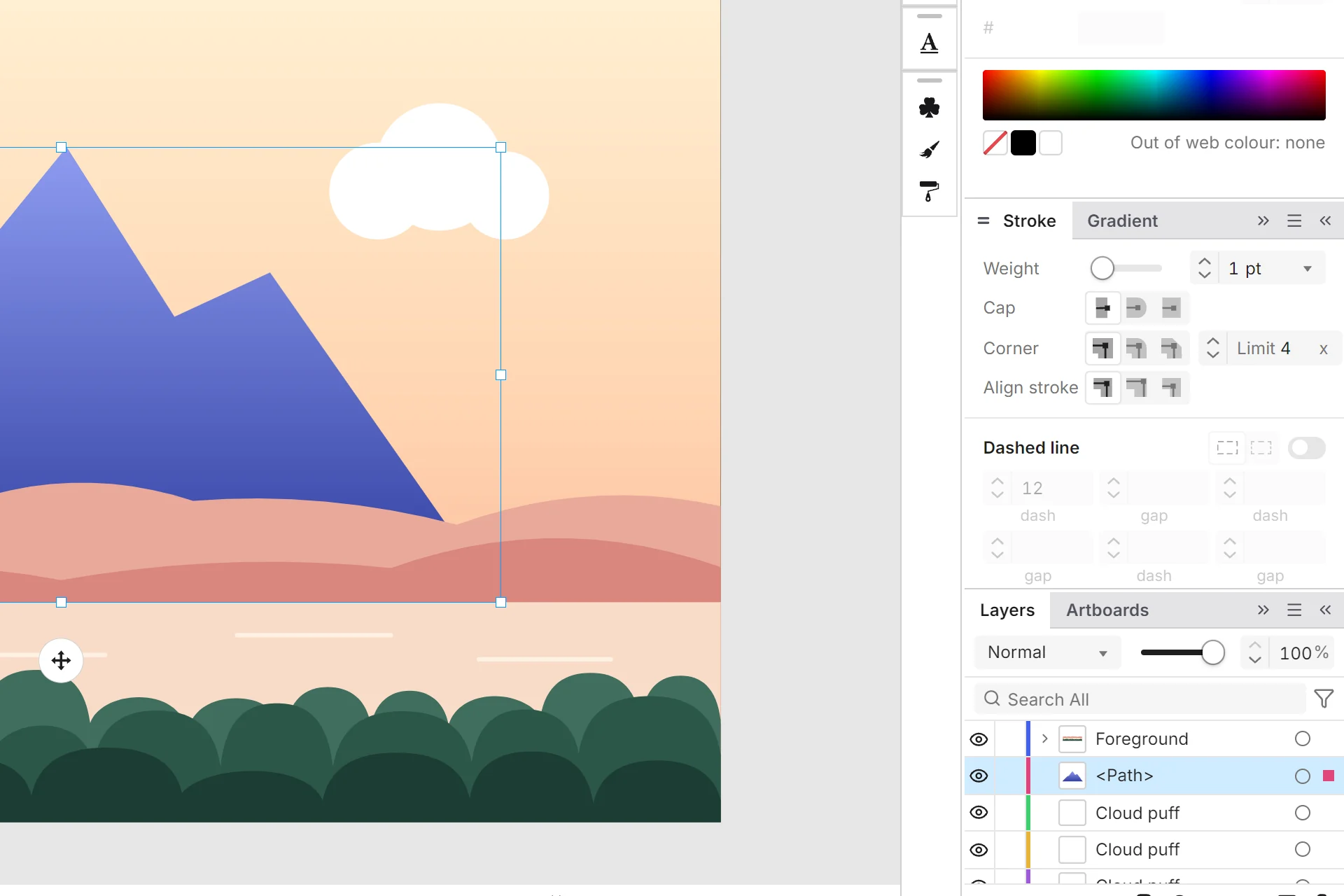
A menu bar, a tool rail, panels and real anchors you can move. Nothing to install.
Open VectorEvery Vector tool is in the Free plan. The Pro trial needs no credit card.
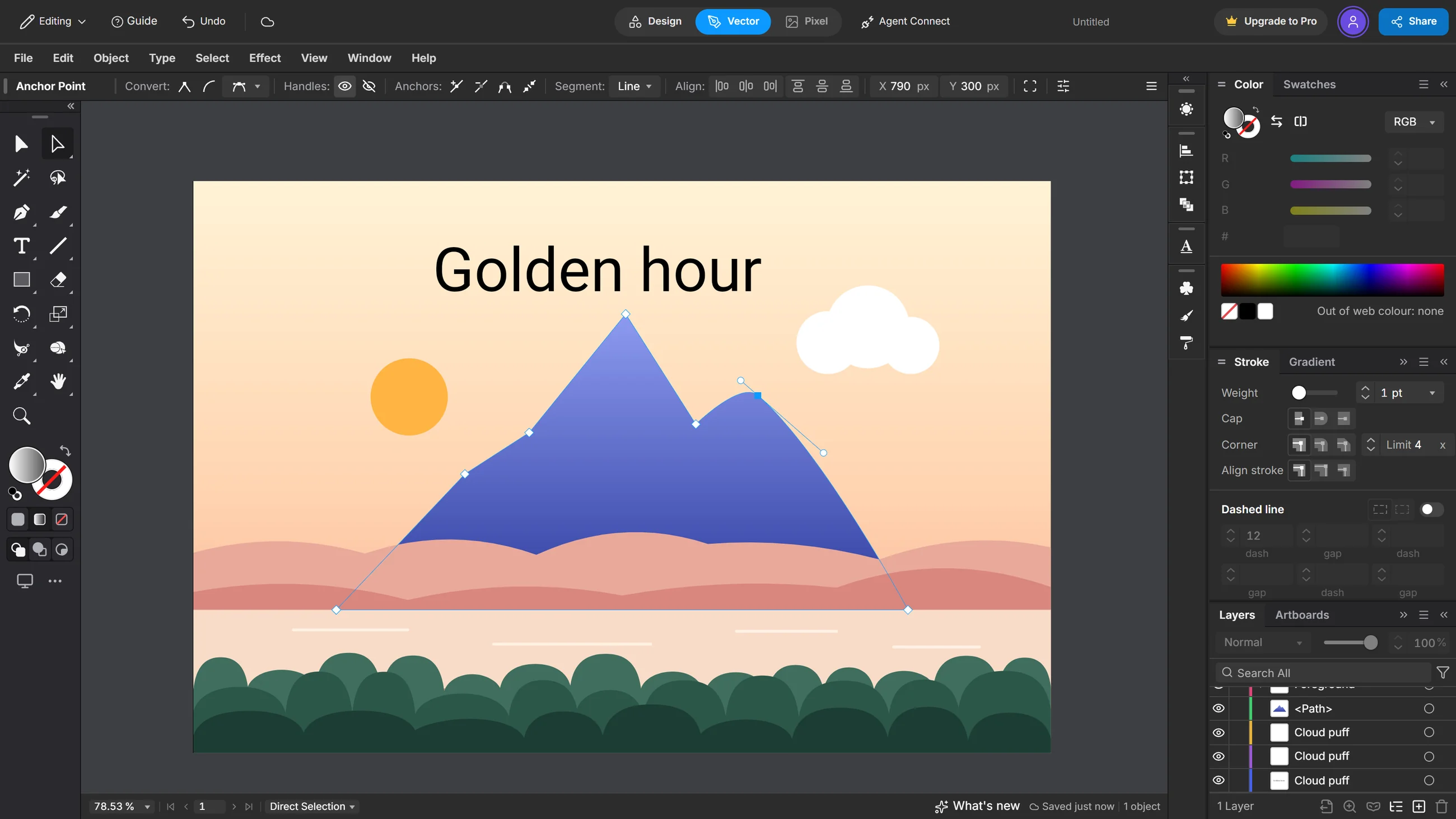
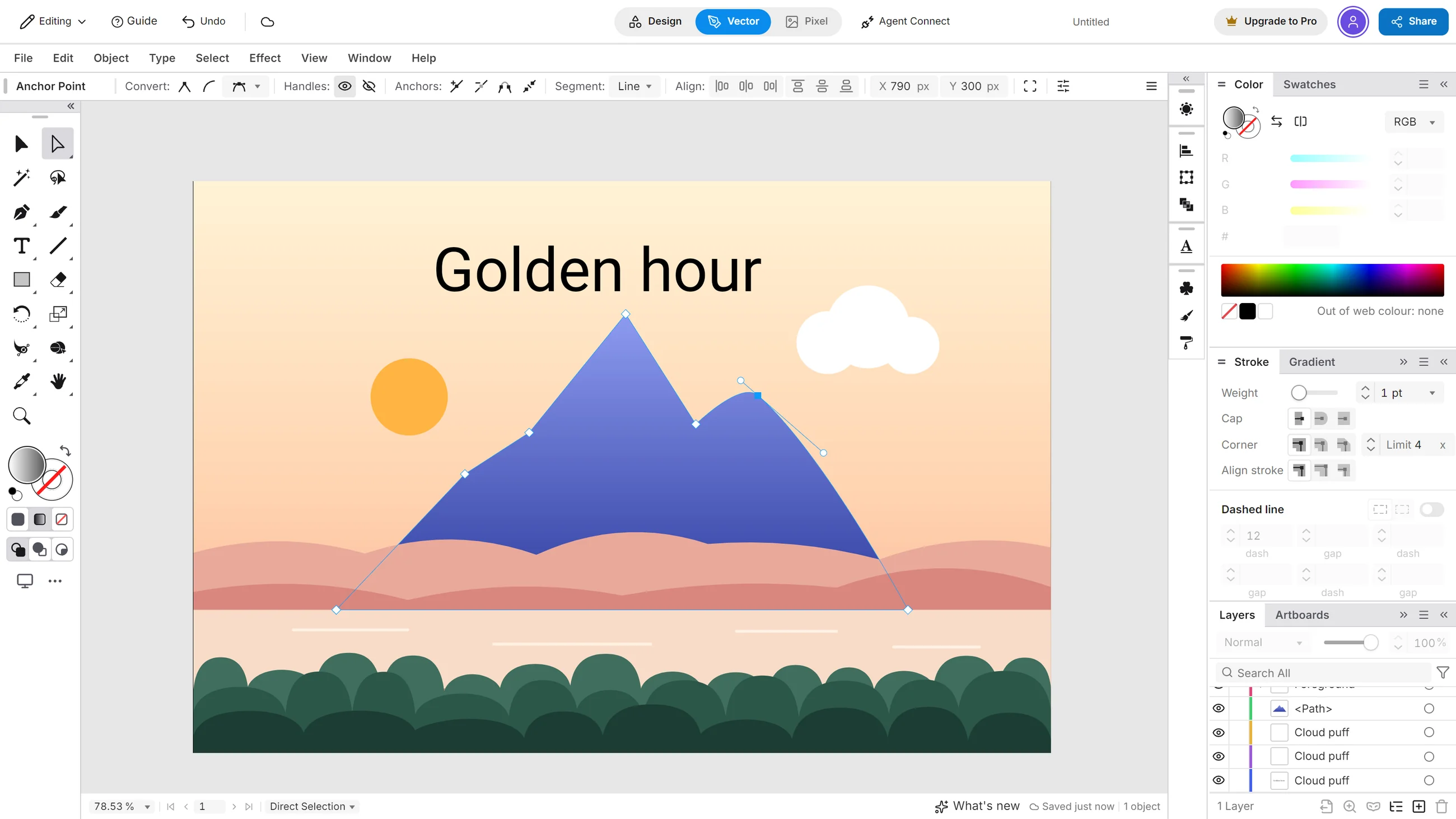
Draw with anchors you can move
Pen, Curve Pen and Pencil make real paths. Pull a handle, add a point or join two ends, and the line stays sharp at any size.
The Pen guide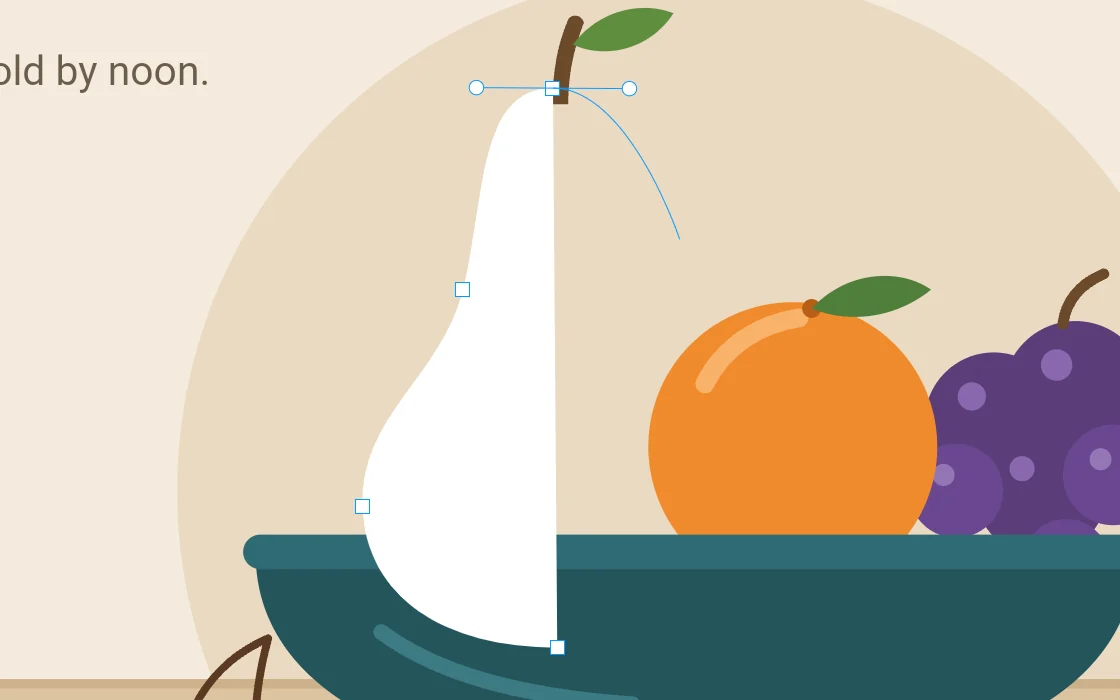

Build shapes by dragging
Shape Builder merges what you drag across, and Alt erases a piece. Boolean does union, minus, intersect and divide in one click.
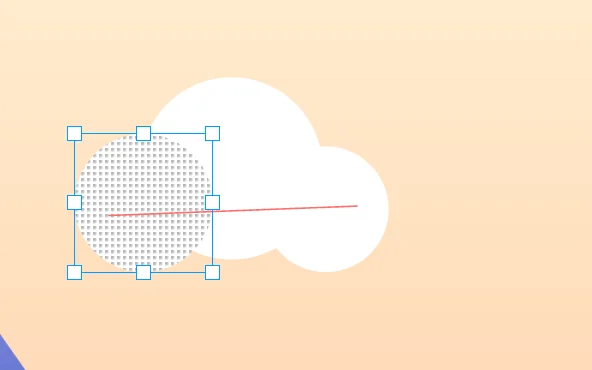
Colour you can push around
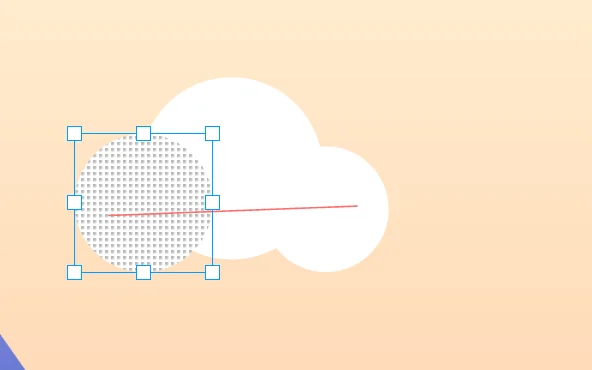
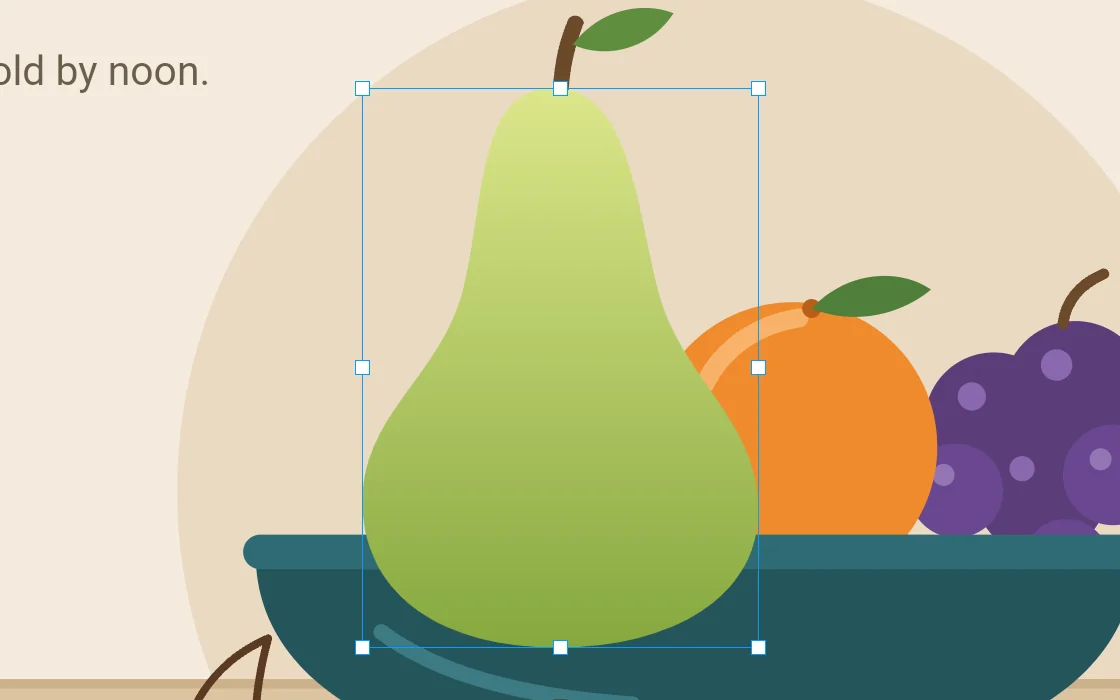
Gradients you adjust on the object, Mesh with colour points you drag, and Recolor to swap every colour in a piece at once.

Type that stays type
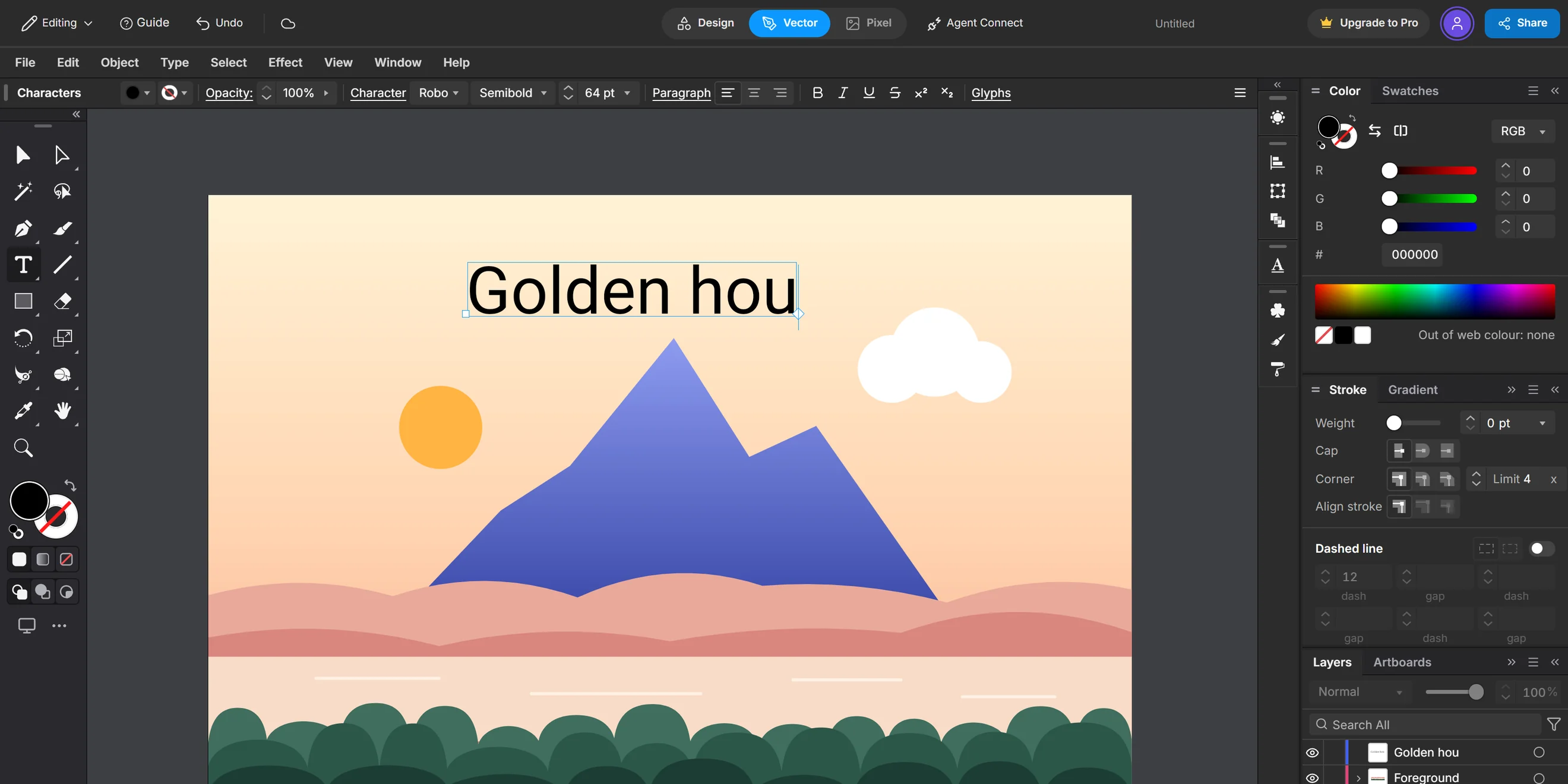
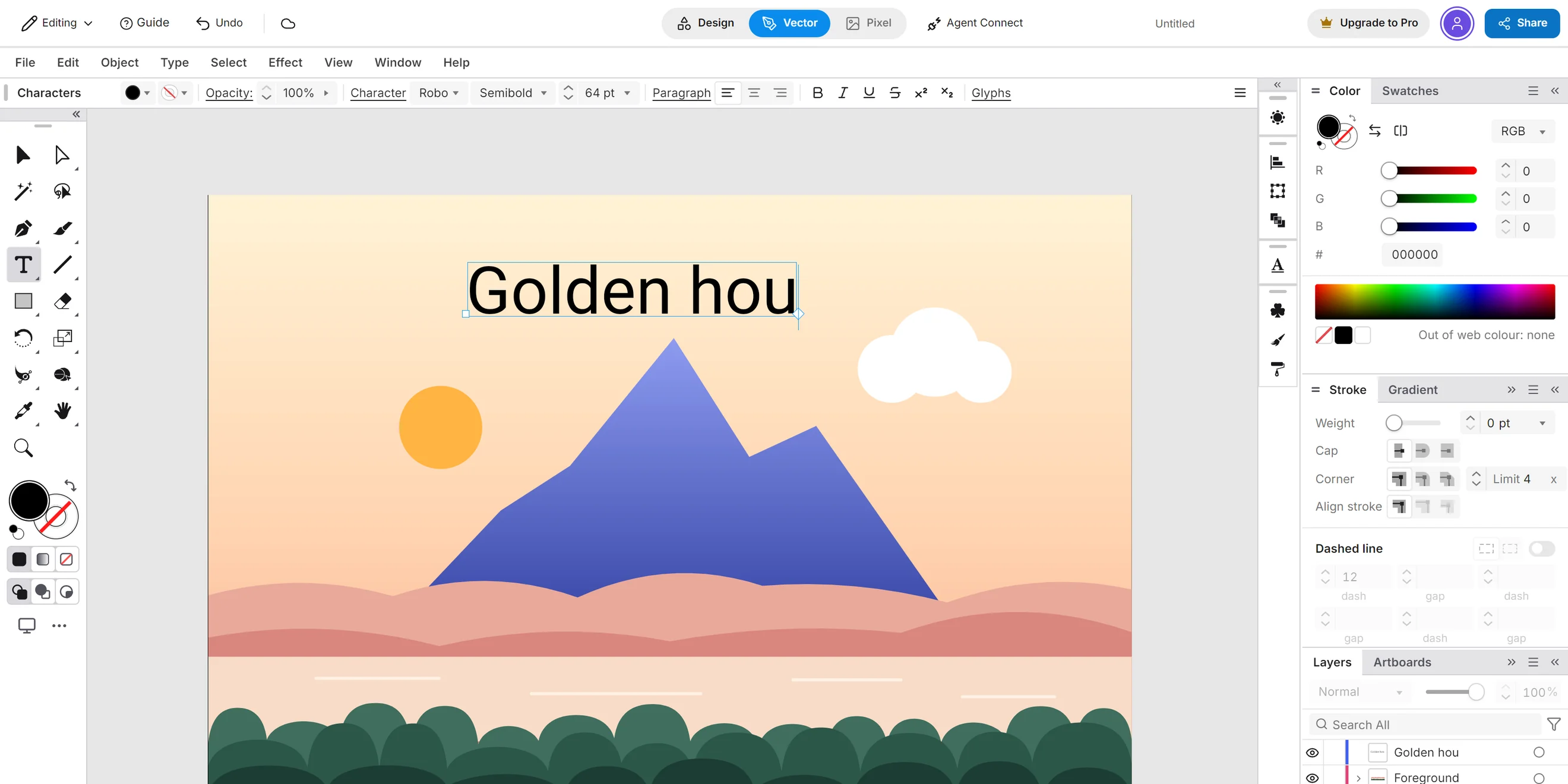
Area type, type on a path and vertical type stay editable until you choose to outline them.
Layers, artboards and pages
Stack and group in Layers, lay out artboards and pages, and step back through History. Snap Guides keep things lined up.
Bring your files, take them out
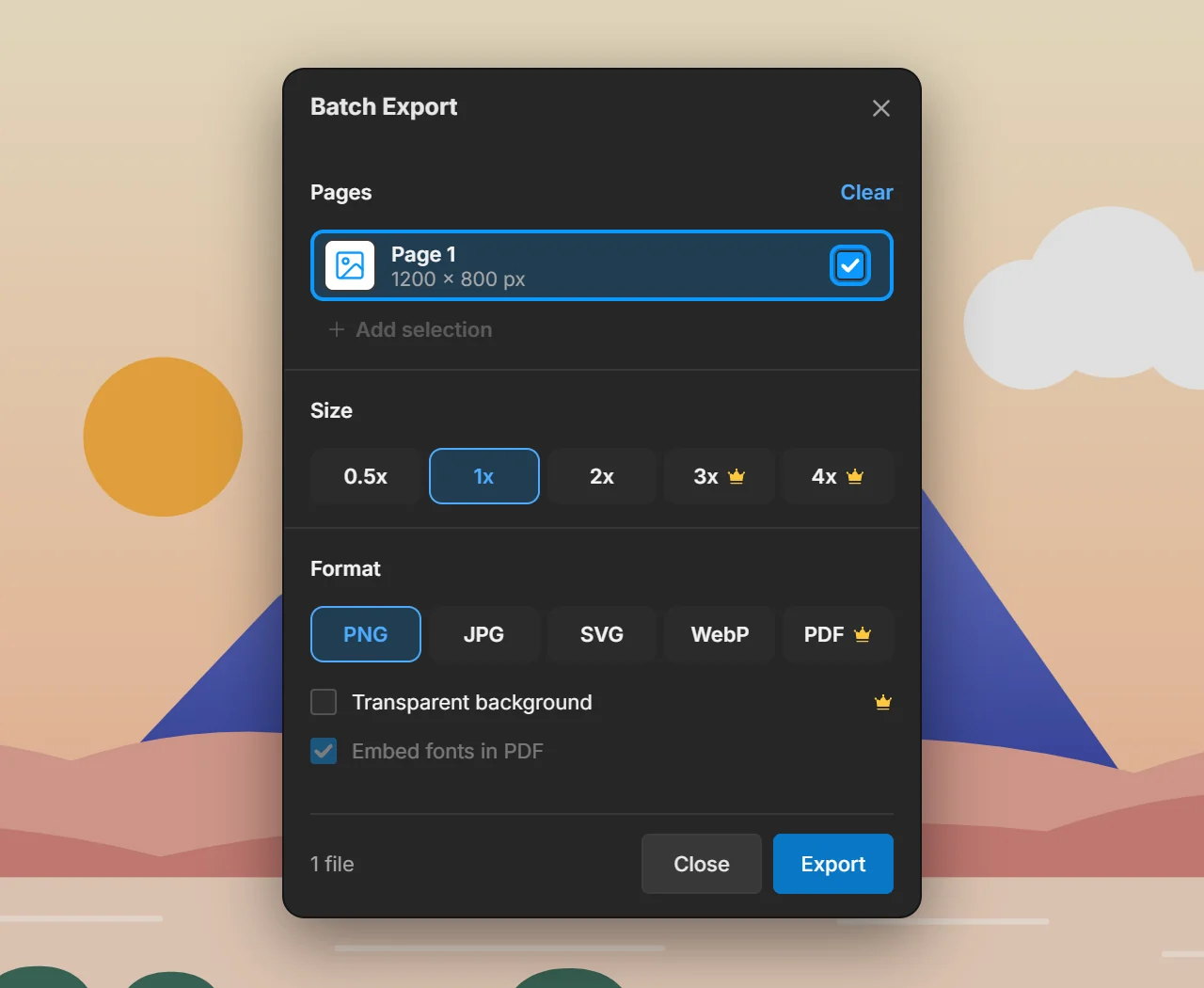
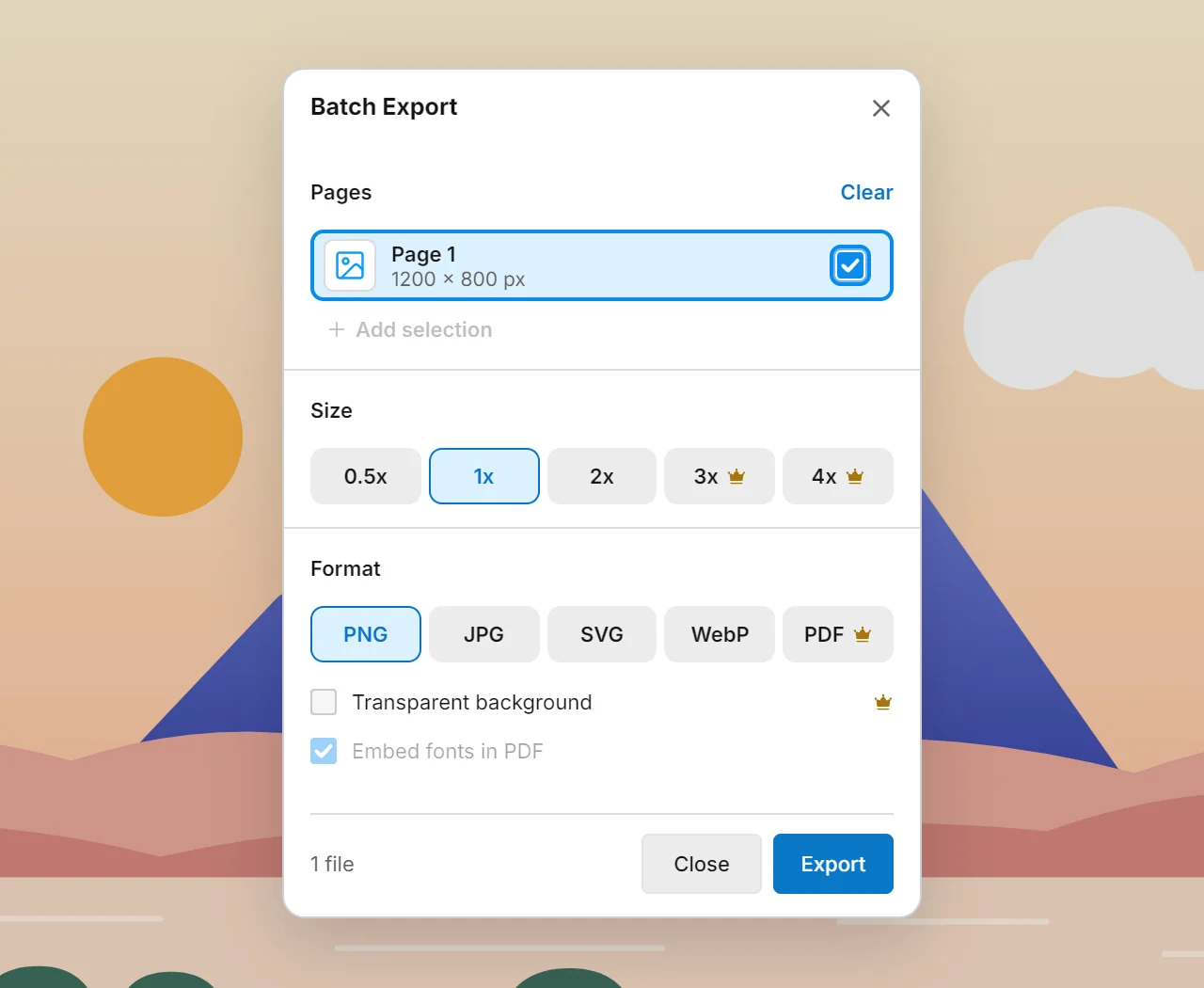
Open SVG, PDF, EPS, PNG, JPG, WebP and GIF. Image to Vector turns a picture into paths. Export SVG, PNG, JPG and WebP, every page in one go, and PDF with Pro.
What is inside Vector
The tools that save the most time, then all of them in groups.
Standout features
Blend
Set the steps between two shapes and the colours follow.
Envelope
Fit art or text to any outline and still edit what is inside.
Mesh
Lay down soft colour by dragging points on the shape.
Weave
Pass one shape over and under another, like links in a chain.
Width
Make a stroke thick here and thin there.
Perspective Grid
Draw on planes that share one, two or three vanishing points.
3D
Extrude, revolve or inflate, light it, then expand it to paths.
Live effects
Shadows, glows and warps stay editable in Appearance.
Every tool, in groups
Selection7
- Selection
- Node
- Group Select
- Wand
- Lasso
- Select Object
- Locked Picker
Pen6
- Pen
- Curve Pen
- Add Anchor Point
- Delete Anchor Point
- Anchor Point
- Join
Drawing7
- Pencil
- Smooth
- Calligraphy
- Draw
- Sketch
- Blob
- Gesture Shape
Shapes6
- Rectangle
- Rounded Rectangle
- Ellipse
- Polygon
- Star
- Flare
Lines and grids6
- Line
- Arc
- Spiral
- Curve
- Rectangular Grid
- Polar Grid
Type6
- Type
- Area Type
- Type on a Path
- Vertical Type
- Vertical Type on a Path
- Character
Cut and erase3
- Eraser
- Scissors
- Knife
Transform6
- Rotate
- Reflect
- Scale
- Shear
- Free Transform
- Pin Warp
Width and warp11
- Width
- Warp
- Twirl
- Pucker
- Bloat
- Scallop
- Crystallize
- Wrinkle
- Reconstruct
- Freeze Mask
- Thaw Mask
Build and fill4
- Shape Builder
- Paint Bucket
- Paint Selection
- Paint Group
Colour7
- Gradient
- Mesh
- Dropper
- Recolor
- Hue Shift
- Invert Colors
- Convert to Grayscale
Blend, Weave and Envelope6
- Blend
- Weave
- Envelope
- Objects on Path
- Pattern Repeat
- Make Pattern
3D8
- Extrude & Bevel
- Revolve
- Inflate
- Plane
- Materials
- Lighting
- Map Art
- Expand to paths
Perspective and symmetry3
- Perspective Grid
- Perspective Selection
- Symmetry
Symbol tools8
- Spray
- Shift
- Squeeze
- Size
- Spin
- Tint
- Fade
- Style
Boolean11
- Union
- Minus Front
- Minus Back
- Intersection
- Exclusion
- Division
- Trim
- Merge
- Crop
- Outline
- Cut Path
Path commands9
- Offset Path
- Outline Stroke
- Simplify
- Average
- Reverse Path Direction
- Split Into Grid
- Clean Up
- Compound Path
- Expand Appearance
Masks and wraps3
- Clipping Mask
- Opacity Mask
- Text Wrap
Live effects13
- Drop Shadow
- Inner Glow
- Outer Glow
- Feather
- Round Corners
- Scribble
- Roughen
- Zig Zag
- Twist
- Warp
- Gaussian Blur
- SVG Filters
- Path Effects
Diagrams and measuring7
- Connector
- Flow Node
- Table
- Sheet
- Charts
- Measure
- Dimension
Workflow11
- Layers
- Artboards
- Pages
- History
- Actions
- Snap Guides
- Align
- Appearance
- Styles
- Symbols
- Find and Replace
Design and Vector free · Try Pro for 14 days
Free
- Design and Vector, every tool
- A limited set of free templates and assets
- Unlimited PNG, JPG, SVG and WebP export
- Limited cloud storage
- 5 cloud files
- Premium assets on view, with a Pro badge
Pro
or $72 a year, save 25%
- Everything in Free
- More cloud storage
- Unlimited cloud files
- High-resolution export
- Transparent background PNG
- PDF export
- Every premium template and asset
- Agent Connect
Agent Connect Pro
Let an outside agent work in the editor through MCP, with the same tools you use. It comes with Pro or the 14-day trial.
Setup guide- Connect your agent
- It draws with the editor's own tools
- Every change stays editable
Questions
Is every Vector tool in the Free plan?
Yes. Pro or the 14-day trial adds more cloud storage, PDF export, premium assets and Agent Connect, not more drawing tools.
How is Vector different from Design?
They edit the same document. Design keeps a simple panel and treats each object as one piece. Vector adds the menu bar, the tool rail and the panels, and lets you edit inside any object.
Do I need to install anything?
No. It runs in a browser tab on a computer or a tablet, with a mouse, a touch screen or a pen. Phones are not supported yet.
Your first path is one click away.
Open VectorEvery Vector tool is in the Free plan. The Pro trial needs no credit card.