A vector editor in your browser.
Draw with real paths, type and layers. Nothing to install.
Try Pro for 14 daysDesign and Vector stay free. The Pro trial needs no credit card.
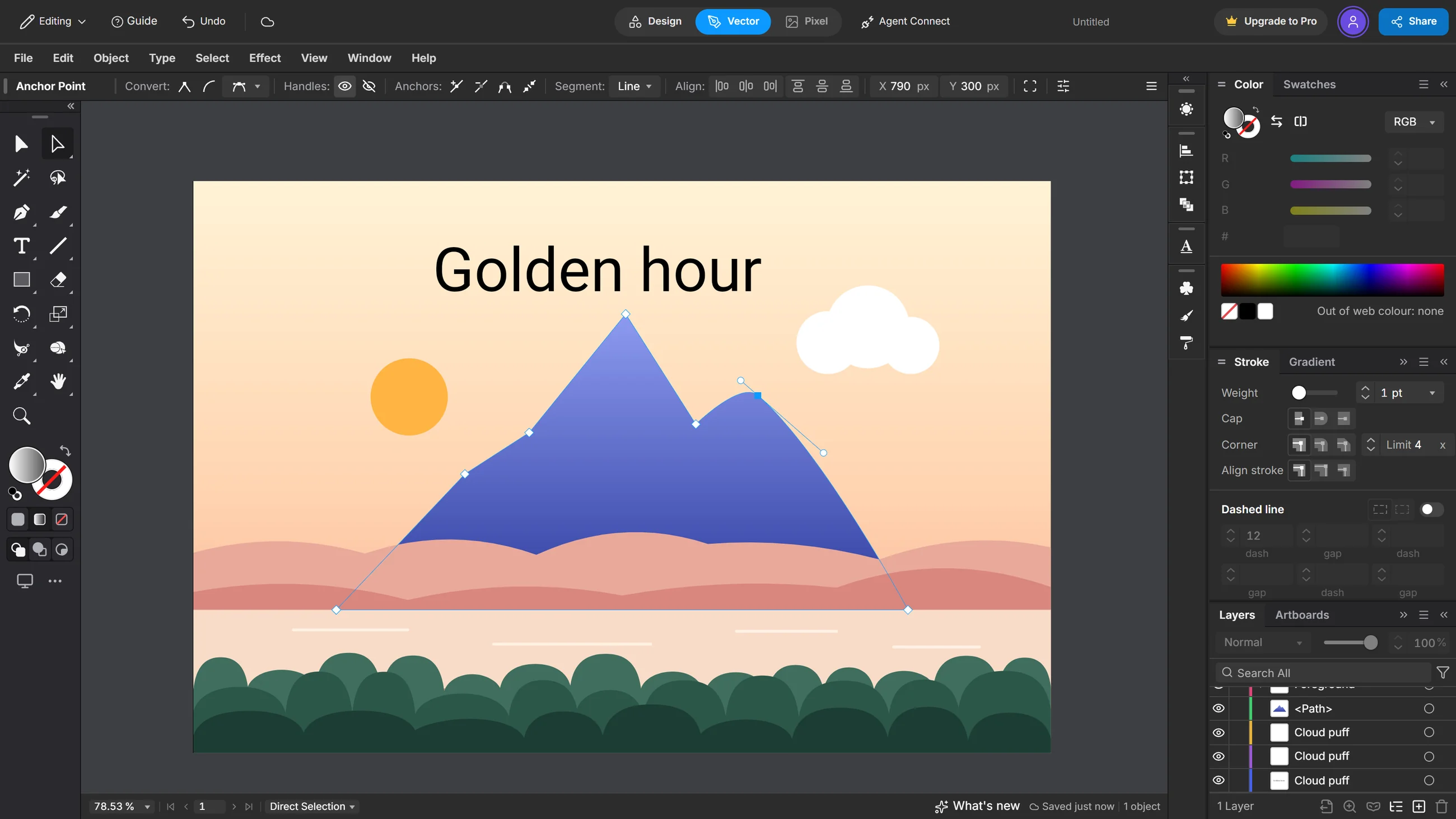
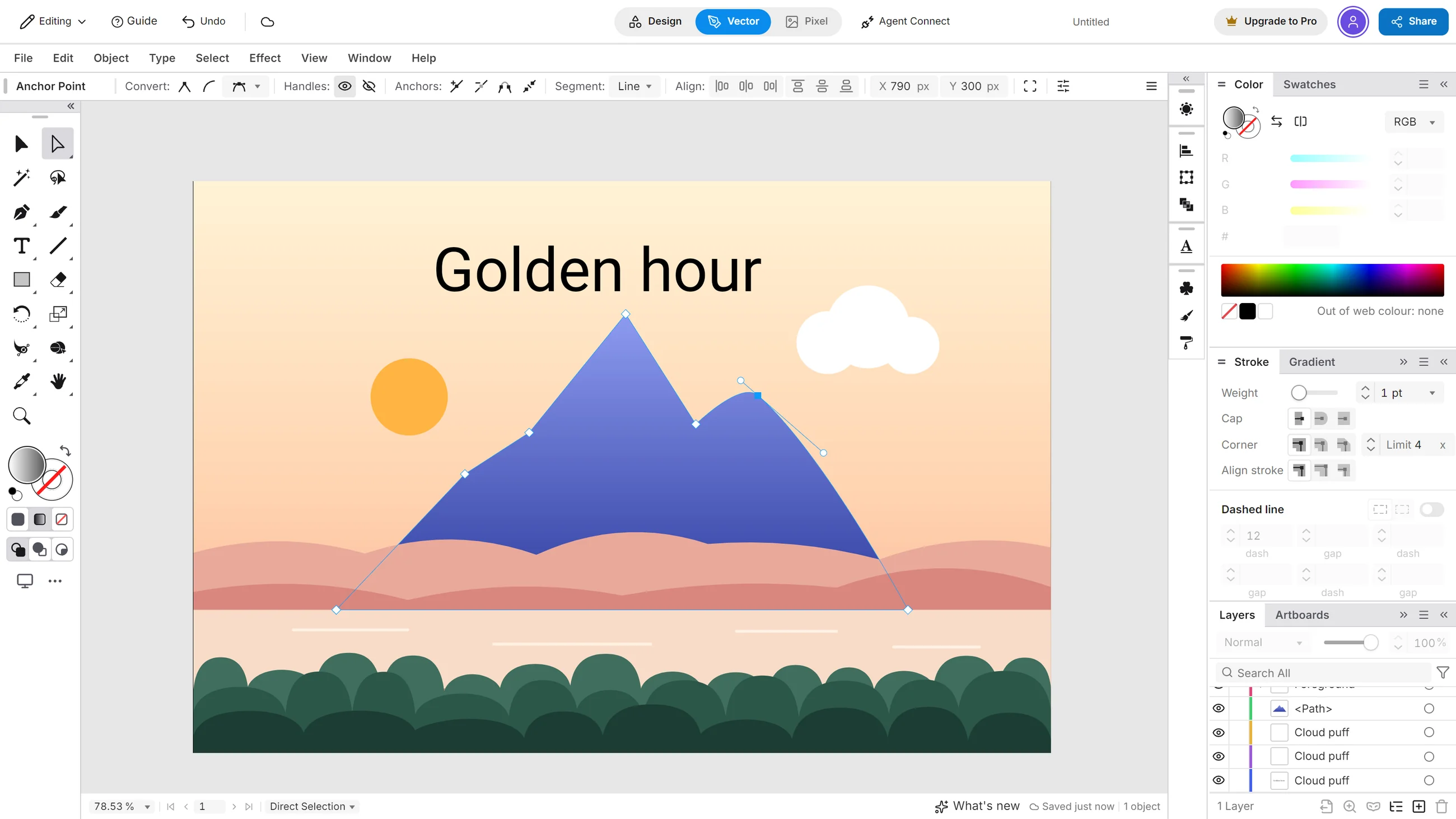
More than a template editor.
Real vector work, same file
Pen, anchor points, Boolean, brushes and effects that stay editable. Move between Design and Vector any time, on the same document.
Your own agent can drive it
Connect it through Agent Connect. It works in your open document with the editor's tools, and you keep an editable file, not a flat picture. With Pro or the 14-day trial.
Design and Vector are free to use
Pro or the 14-day trial adds Agent Connect, more storage and premium assets.
See it in use
Drawn by hand, then Agent Connect carries on.
Open a tab and start
Nothing to install. It runs in your browser on any computer, with a mouse, a touch screen or a pen, and it saves as you go.
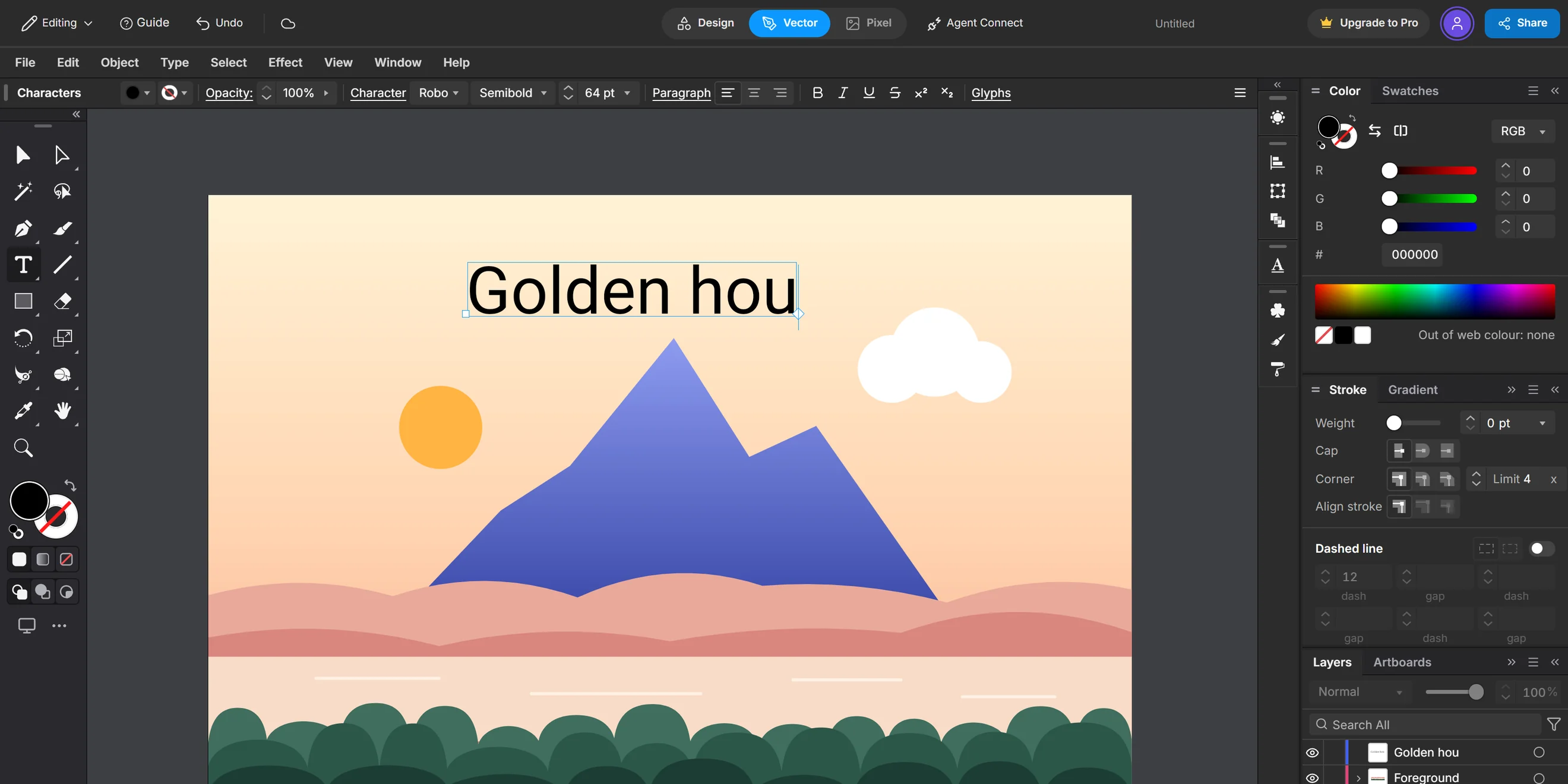
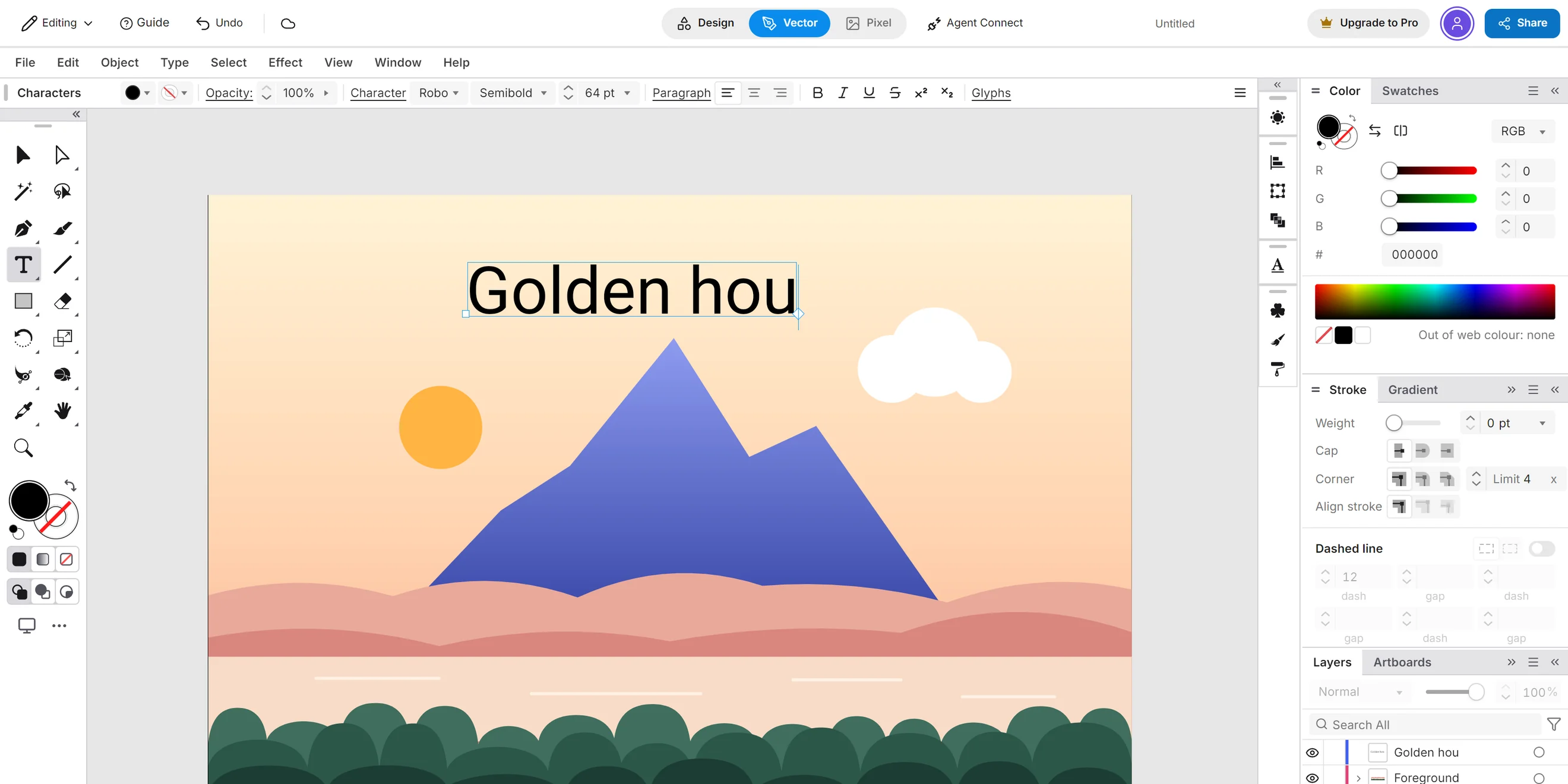
A complete professional kit
Pen and anchors, Shape Builder, gradients and mesh, blends, 3D and live effects, all in one app.
- Selection
- Direct Selection
- Pen
- Curvature
- Pencil
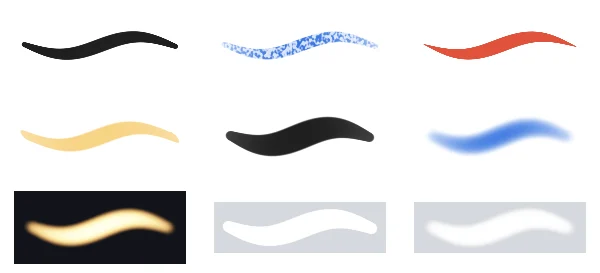
- Paintbrush
- Blob Brush
- Shaper
- Width
- Type
- Type on a Path
- Gradient
- Mesh
- Blend
- Shape Builder
- Paint Bucket
- Envelope
- Intertwine
- Puppet Warp
- Liquify
- Knife
- Eraser
- Grid
- Measure
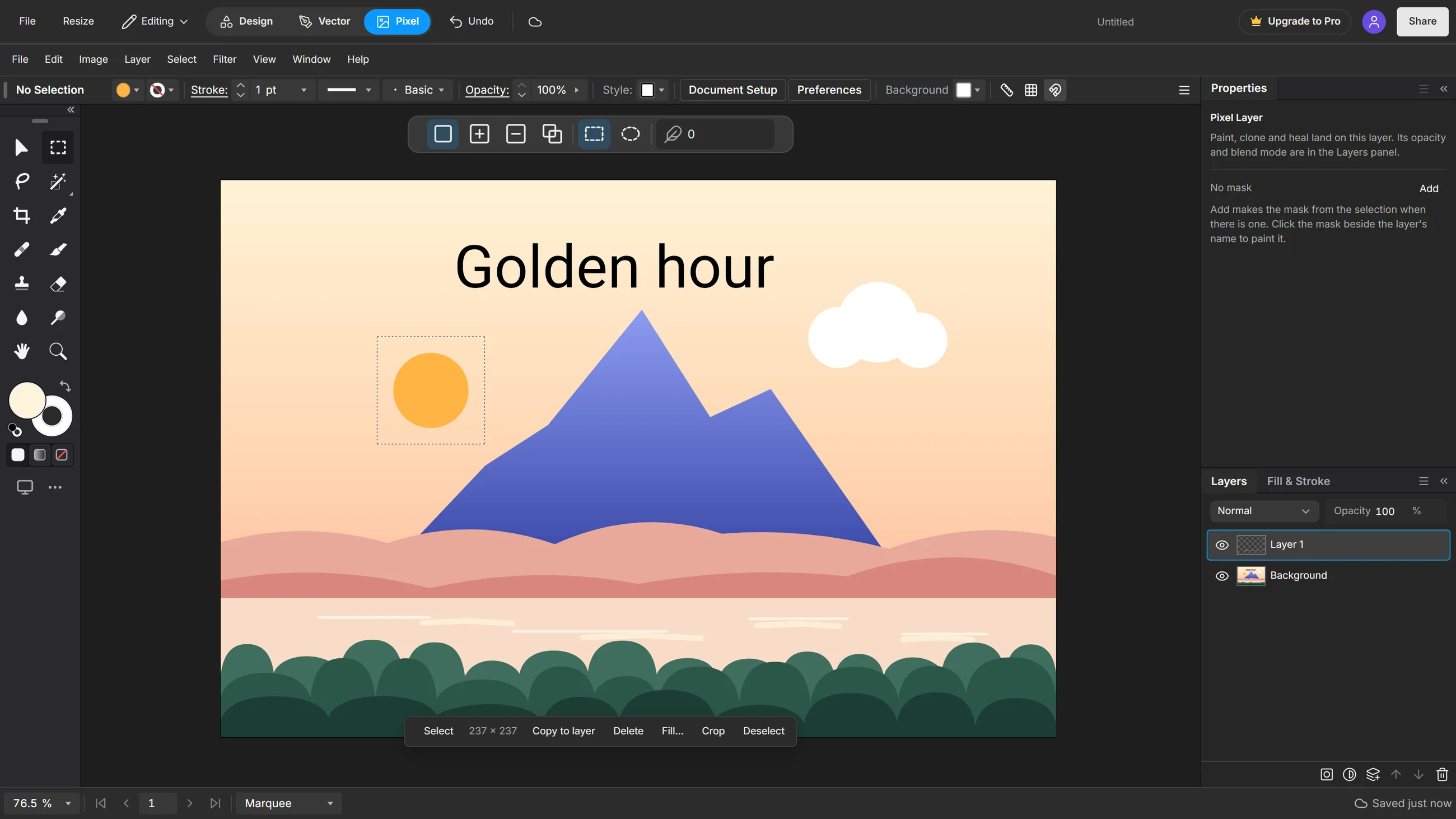
Three modes, one file
Design and Vector work on the same document, and Pixel joins them soon. Switch any time and nothing gets flattened.
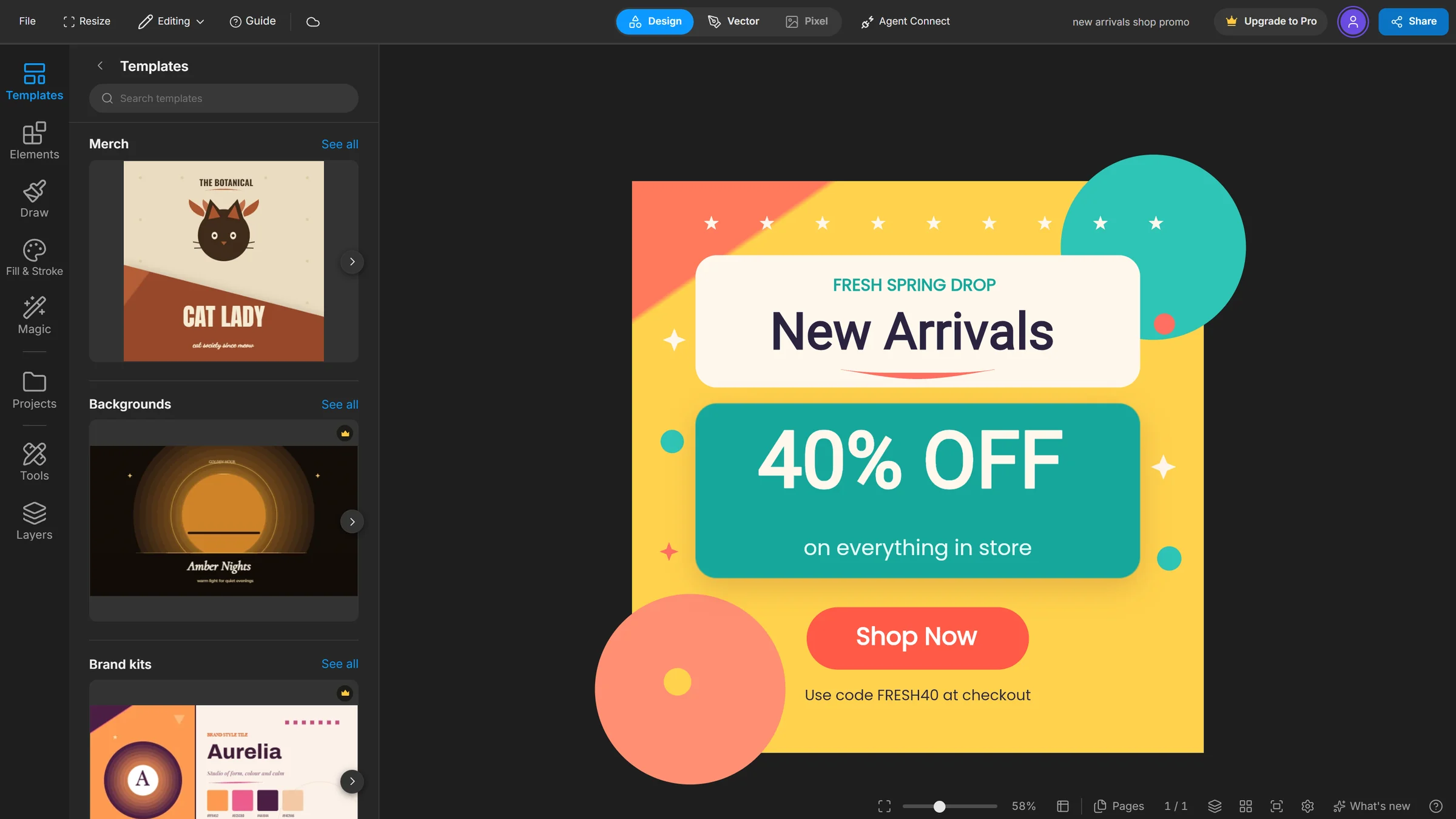
Start from a template
Posters, posts, menus, cards and more, every word, colour and shape editable.
Browse the templates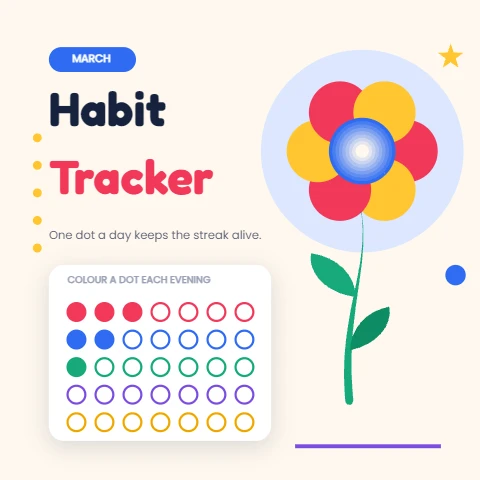

Agent Connect
Connect Claude Code, Codex or another MCP agent. It draws and edits with the editor's own tools, and every change stays editable.
Setup guide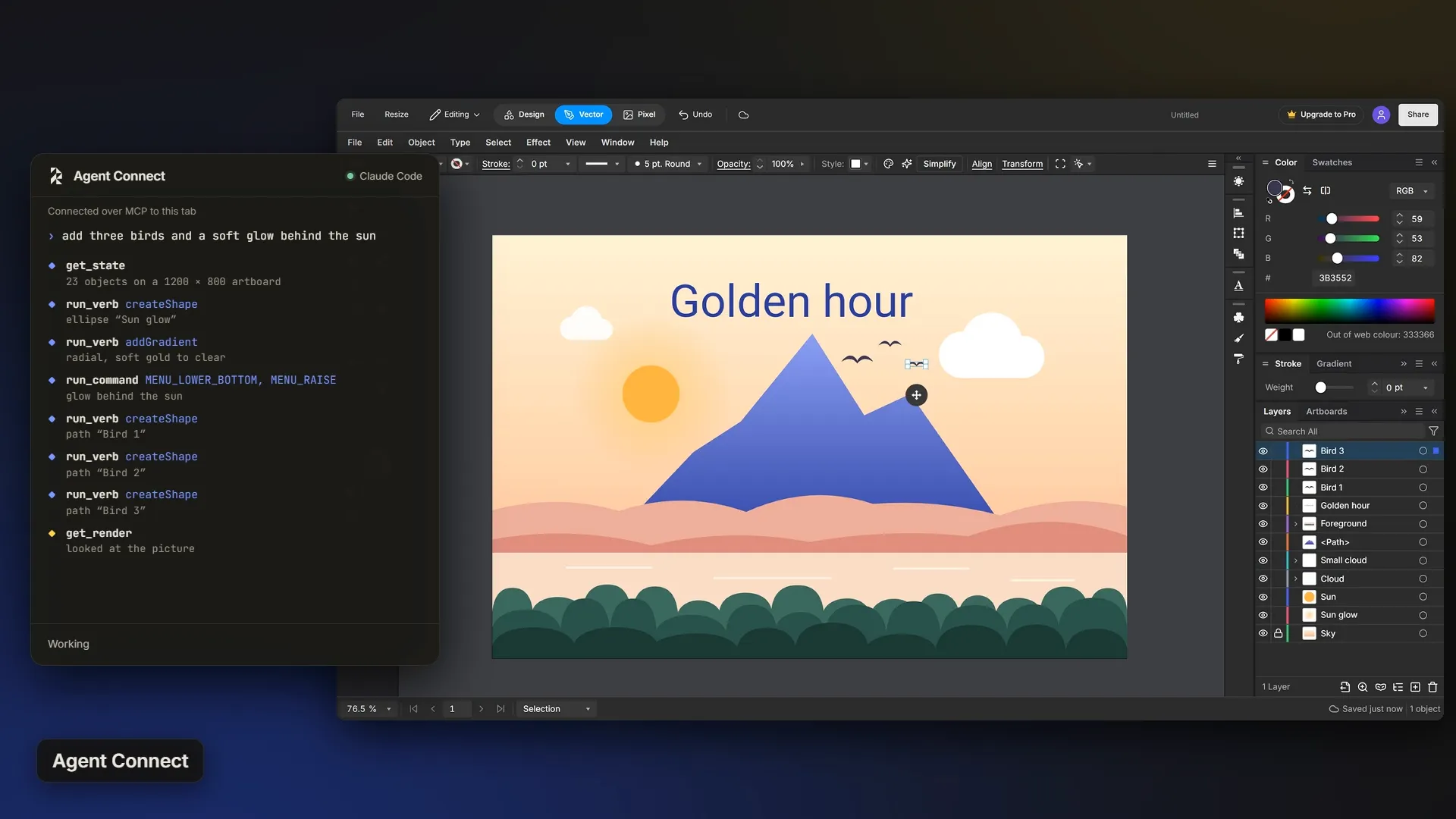
Show your agent where Pro
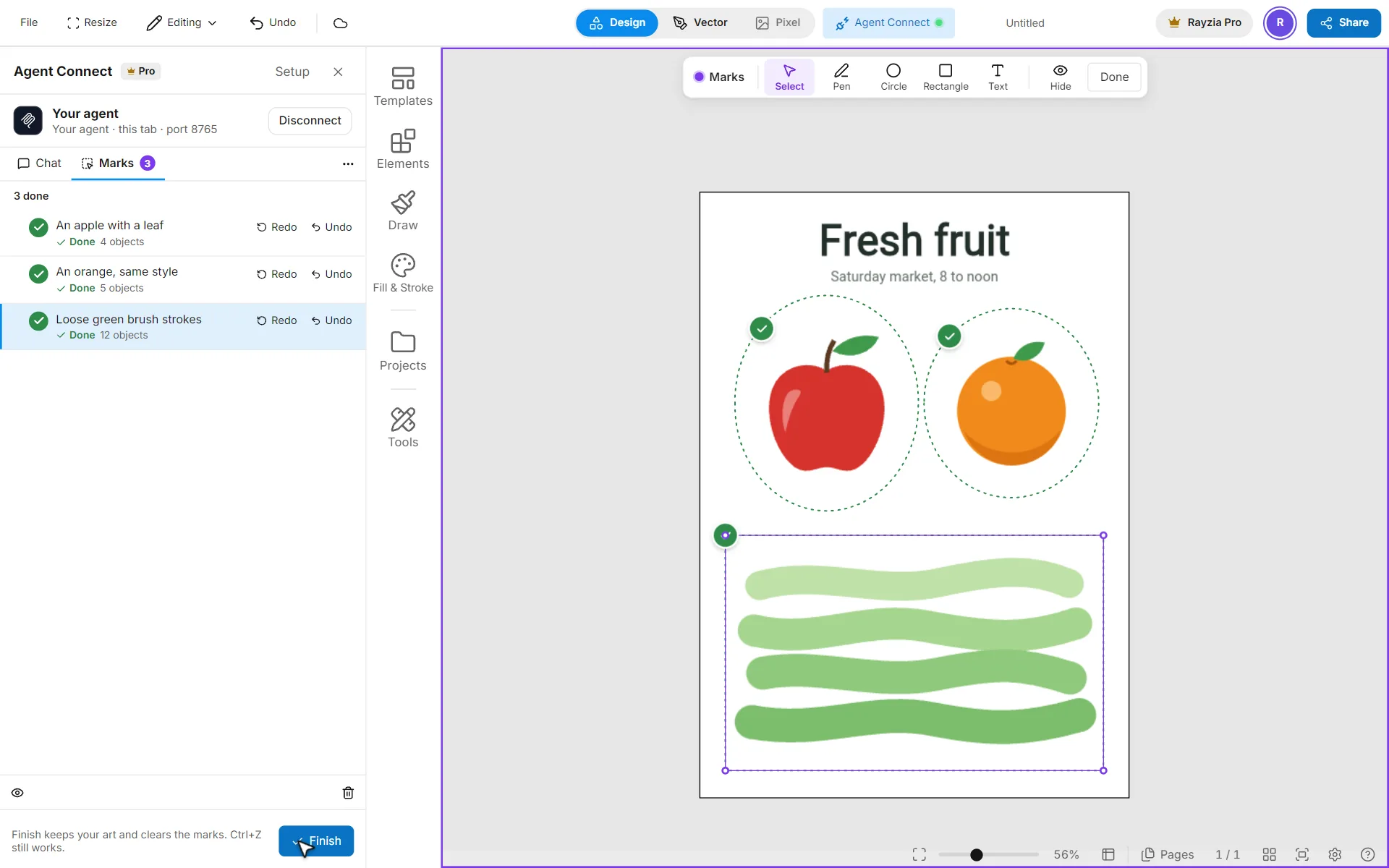
With Agent Connect you draw numbered areas on the page and write a note on each. Your agent works through them in order, and Rayzia shows you anything it changes outside an area.
Pro only. Start the 14-day trial to use it. The replay runs on the real editor with a scripted agent.
Watch the replay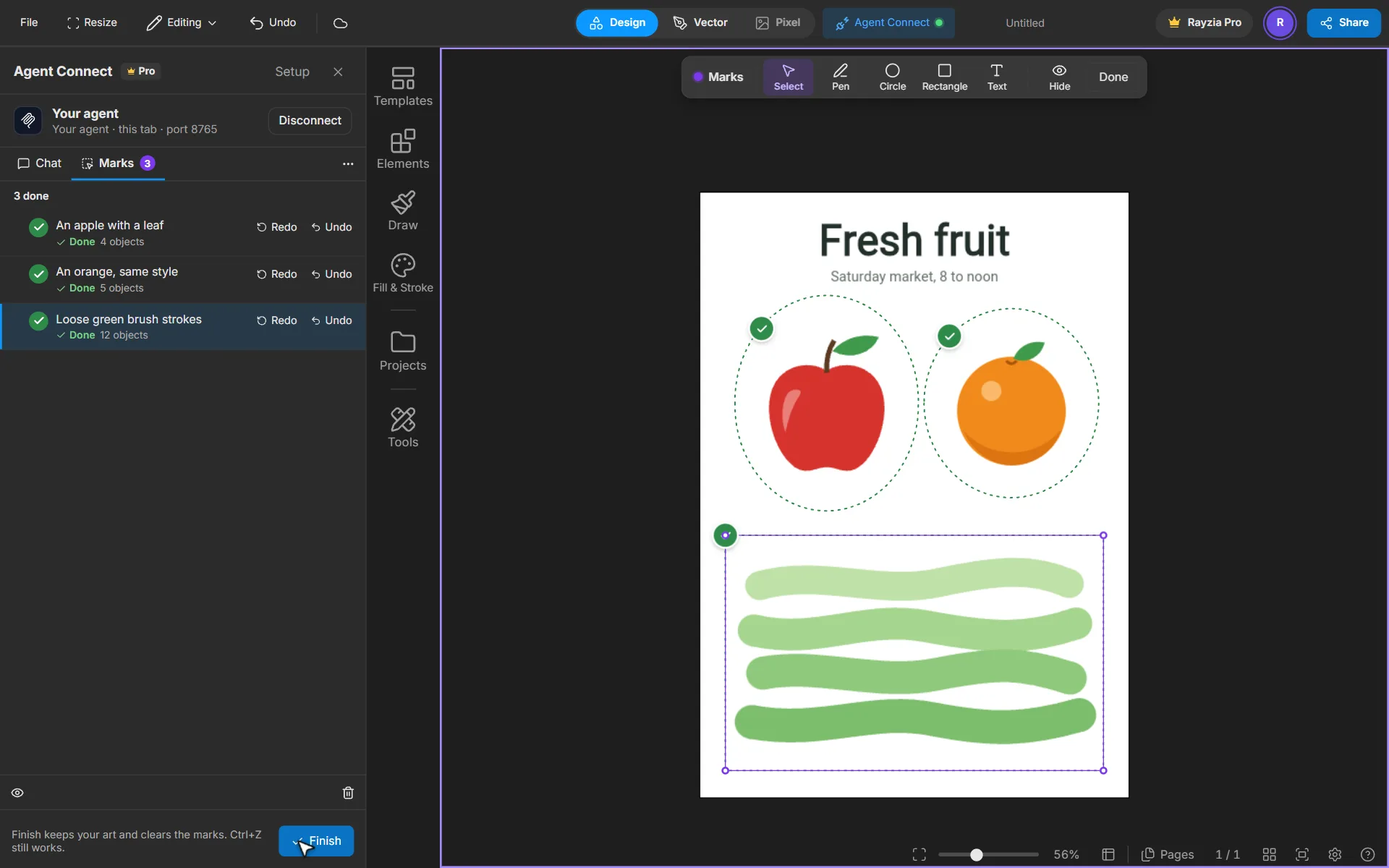
Opens and exports the files you use
Open SVG, PDF, EPS, PNG, JPG, WebP and GIF. Export SVG, PNG, JPG and WebP, every page in one go, and PDF with Pro.
Every tool, for every kind of job
See what is inside each mode.
Design
Design is in the Free plan, every part of it.
Standout features
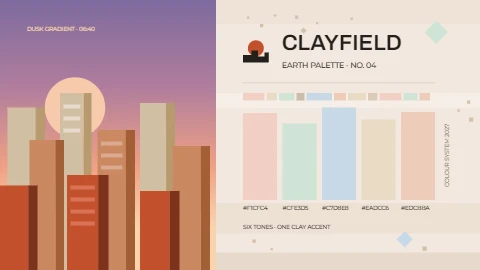
Templates
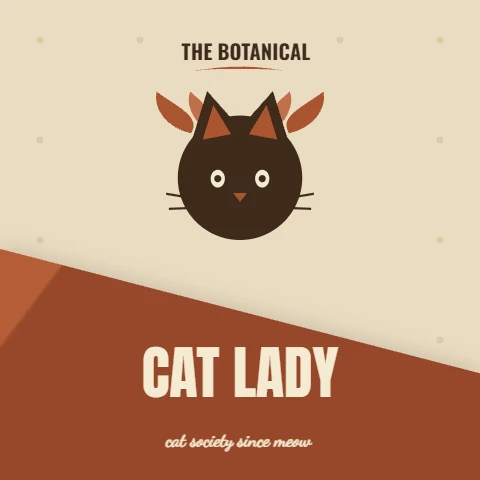
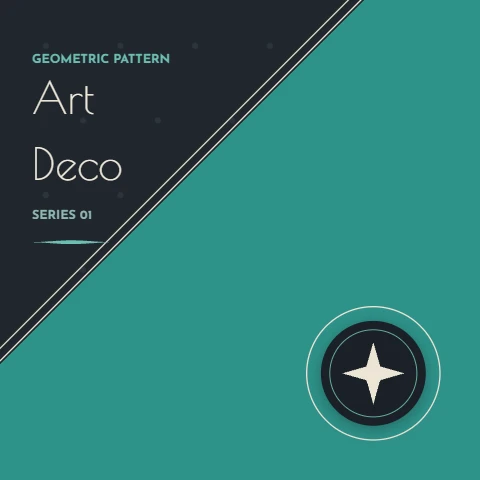
Posters, posts, menus and cards, every word and shape editable.

Recolour the whole design
Shift every colour in the design together, or swap one colour for another.



160 mockups
Put your design on tees, mugs, boxes, phones, screens and signs.



A library of 47,355
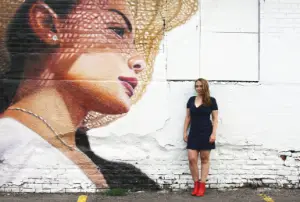
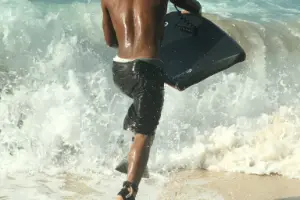
Photos, icons, graphics and fonts, ready to drag in.
Every tool, in groups
Start8
- Templates
- Social post
- Story
- Video thumbnail
- Presentation
- A4, A3, A5, Letter
- Custom size
- Pages
Tools8
- Select
- Text
- Line
- Rectangle
- Ellipse
- Draw
- Calligraphy
- Sketch
Draw7
- Pen
- Marker
- Highlighter
- Pencil
- Eraser
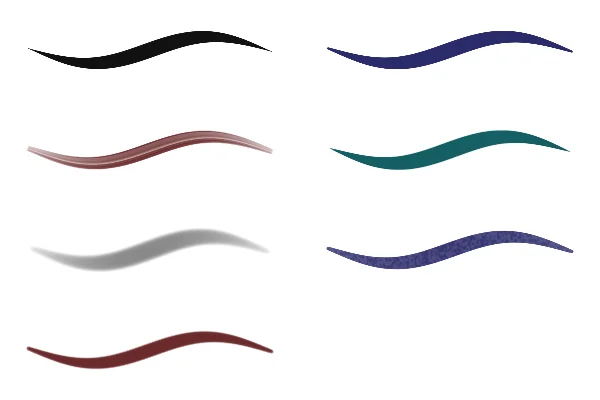
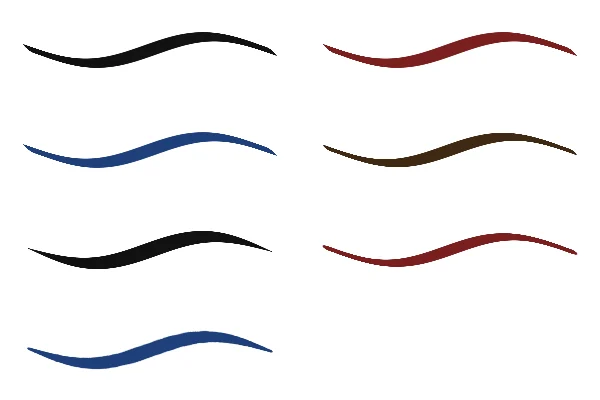
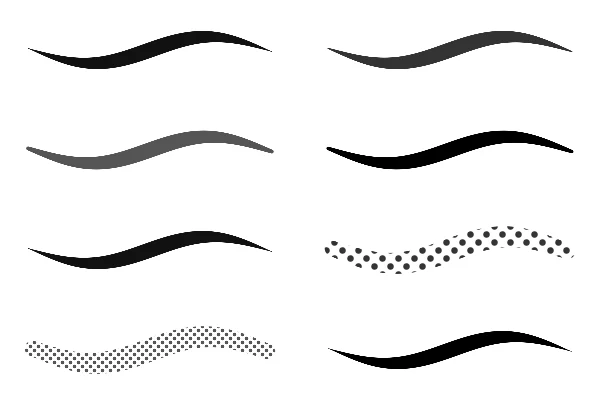
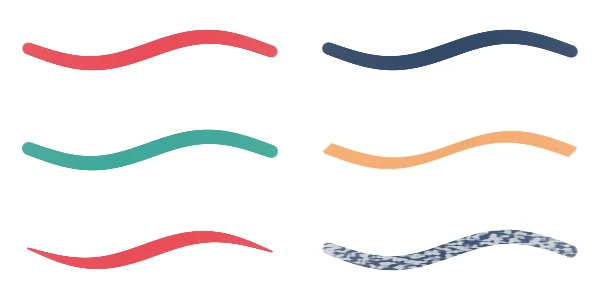
- Brushes
- Sketch brushes
Elements10
- Graphics
- Photos
- Icons
- Shapes
- Frames
- Stamps
- Curves
- Generators
- Type layouts
- Mockups
Charts and data5
- Charts
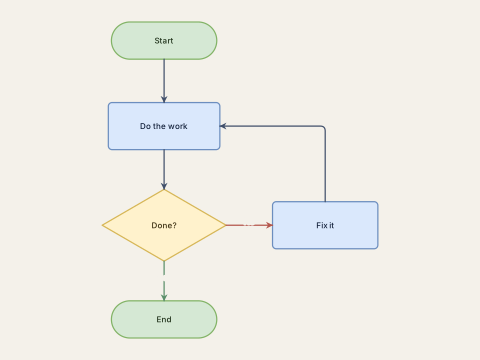
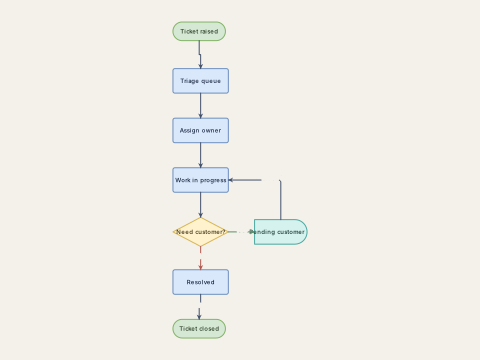
- Flowcharts
- Flow shapes
- Tables
- Sheets
Style9
- Graphic styles
- Effects
- Filters
- Patterns
- Colour palettes
- Gradients
- Path effects
- Fonts
- Animations
Shape and arrange10
- Warp
- Blend
- Envelope
- Boolean
- Clipping mask
- Copies
- Arrange
- Transparency
- 3D
- Recolor
Export and share7
- PNG
- JPG
- SVG
- WebP
- PDF (Pro)
- Share link
- Projects
Vector
Vector is in the Free plan, every tool of it.
Standout features
Blend
Morph one shape and colour into another, in as many steps as you set.
Envelope
Bend art or text into any shape, and edit what is inside it later.
Boolean
Union, minus front, intersect, exclude and divide in one click.
3D
Extrude, revolve or inflate with materials and light, then expand it to paths.
Image to Vector
Turn a photo or a scan into vector paths.
Live effects
Shadows, glows, warps and blurs stay editable in Appearance.
Mesh
Free-form colour: drag colour points right on the shape.
Weave
Make overlapping shapes pass over and under each other, like links in a chain.
Shape Builder
Drag across overlapping shapes to merge them, or hold Alt to erase a piece.
Width
Pull a stroke thicker or thinner at any point along it.
Perspective Grid
Draw on one, two or three point perspective planes.
Recolor
Swap every colour in a piece at once, or shift them all together.
Every tool, in groups
Selection7
- Selection
- Node
- Group Select
- Wand
- Lasso
- Select Object
- Locked Picker
Pen6
- Pen
- Curve Pen
- Add Anchor Point
- Delete Anchor Point
- Anchor Point
- Join
Drawing7
- Pencil
- Smooth
- Calligraphy
- Draw
- Sketch
- Blob
- Gesture Shape
Shapes6
- Rectangle
- Rounded Rectangle
- Ellipse
- Polygon
- Star
- Flare
Lines and grids6
- Line
- Arc
- Spiral
- Curve
- Rectangular Grid
- Polar Grid
Type6
- Type
- Area Type
- Type on a Path
- Vertical Type
- Vertical Type on a Path
- Character
Cut and erase3
- Eraser
- Scissors
- Knife
Transform6
- Rotate
- Reflect
- Scale
- Shear
- Free Transform
- Pin Warp
Width and warp11
- Width
- Warp
- Twirl
- Pucker
- Bloat
- Scallop
- Crystallize
- Wrinkle
- Reconstruct
- Freeze Mask
- Thaw Mask
Build and fill4
- Shape Builder
- Paint Bucket
- Paint Selection
- Paint Group
Colour7
- Gradient
- Mesh
- Dropper
- Recolor
- Hue Shift
- Invert Colors
- Convert to Grayscale
Blend, Weave and Envelope6
- Blend
- Weave
- Envelope
- Objects on Path
- Pattern Repeat
- Make Pattern
3D8
- Extrude & Bevel
- Revolve
- Inflate
- Plane
- Materials
- Lighting
- Map Art
- Expand to paths
Perspective and symmetry3
- Perspective Grid
- Perspective Selection
- Symmetry
Symbol tools8
- Spray
- Shift
- Squeeze
- Size
- Spin
- Tint
- Fade
- Style
Boolean11
- Union
- Minus Front
- Minus Back
- Intersection
- Exclusion
- Division
- Trim
- Merge
- Crop
- Outline
- Cut Path
Path commands9
- Offset Path
- Outline Stroke
- Simplify
- Average
- Reverse Path Direction
- Split Into Grid
- Clean Up
- Compound Path
- Expand Appearance
Masks and wraps3
- Clipping Mask
- Opacity Mask
- Text Wrap
Live effects13
- Drop Shadow
- Inner Glow
- Outer Glow
- Feather
- Round Corners
- Scribble
- Roughen
- Zig Zag
- Twist
- Warp
- Gaussian Blur
- SVG Filters
- Path Effects
Diagrams and measuring7
- Connector
- Flow Node
- Table
- Sheet
- Charts
- Measure
- Dimension
Workflow11
- Layers
- Artboards
- Pages
- History
- Actions
- Snap Guides
- Align
- Appearance
- Styles
- Symbols
- Find and Replace
Pixel
Pixel is coming soon.
Standout features
Heal and Clone
Spot Heal, Heal, Remove and Clone take out marks and stray objects.
Selections
Marquee, Lasso, Wand, and Select Subject, which runs on your device.
Masks
Hide part of a layer without erasing it. Remove Background is a mask too, so nothing is lost.
Adjust layers and filters
15 adjustments, from Levels and Curves to Gradient Map, each on its own editable layer.
Every tool, in groups
Selections8
- Marquee
- Lasso
- Polygonal Lasso
- Wand
- Select Object
- Select Subject
- Refine Edge
- Feather
Retouch5
- Spot Heal
- Heal
- Remove
- Red Eye
- Clone
Paint5
- Brush
- Eraser
- Dropper
- Fill
- Foreground and background
Tone and focus6
- Blur
- Sharpen
- Smudge
- Lighten
- Darken
- Saturate
Crop and reshape4
- Crop
- Crop to Selection
- Free Transform
- Move
Adjust layers16
- Brightness/Contrast
- Levels
- Curves
- Exposure
- Vibrance
- Hue/Saturation
- Color Balance
- Black & White
- Photo Filter
- Channel Mixer
- Invert
- Posterize
- Threshold
- Gradient Map
- Selective Color
- Auto Tone
Filters6
- Raw Develop
- Melt
- Gaussian Blur
- Reduce Noise
- Unsharp Mask
- High Pass
Layers and masks8
- Layer Mask
- Clipping Mask
- Remove Background
- 16 blend modes
- Merge Down
- Merge Visible
- Stamp Visible
- Flatten Image
Compare and export4
- Before view
- Copy Merged
- Export PNG
- Export JPG
Everything in the library
47,355 assets in 26 kinds, all in one panel of the editor. Free covers most of it, and Pro opens the premium ones.
























































































'%3E%3Cpath d='M170 175.9 L292.4 170 L170 164.1 Z' fill='url(%23stmp-sun1-r)'/%3E%3Cpath d='M167.7 175.5 L305.1 225.9 L172.3 164.5 Z' fill='url(%23stmp-sun1-r)'/%3E%3Cpath d='M165.8 174.2 L290.2 290.2 L174.2 165.8 Z' fill='url(%23stmp-sun1-r)'/%3E%3Cpath d='M164.5 172.3 L216.8 283.1 L175.5 167.7 Z' fill='url(%23stmp-sun1-r)'/%3E%3Cpath d='M164.1 170 L170 316.2 L175.9 170 Z' fill='url(%23stmp-sun1-r)'/%3E%3Cpath d='M164.5 167.7 L104.9 327.1 L175.5 172.3 Z' fill='url(%23stmp-sun1-r)'/%3E%3Cpath d='M165.8 165.8 L83.5 256.6 L174.2 174.2 Z' fill='url(%23stmp-sun1-r)'/%3E%3Cpath d='M167.7 164.5 L34.9 225.9 L172.3 175.5 Z' fill='url(%23stmp-sun1-r)'/%3E%3Cpath d='M170 164.1 L0 170 L170 175.9 Z' fill='url(%23stmp-sun1-r)'/%3E%3Cpath d='M172.3 164.5 L56.9 123.2 L167.7 175.5 Z' fill='url(%23stmp-sun1-r)'/%3E%3Cpath d='M174.2 165.8 L66.6 66.6 L165.8 174.2 Z' fill='url(%23stmp-sun1-r)'/%3E%3Cpath d='M175.5 167.7 L104.9 12.9 L164.5 172.3 Z' fill='url(%23stmp-sun1-r)'/%3E%3Cpath d='M175.9 170 L170 47.6 L164.1 170 Z' fill='url(%23stmp-sun1-r)'/%3E%3Cpath d='M175.5 172.3 L225.9 34.9 L164.5 167.7 Z' fill='url(%23stmp-sun1-r)'/%3E%3Cpath d='M174.2 174.2 L290.2 49.8 L165.8 165.8 Z' fill='url(%23stmp-sun1-r)'/%3E%3Cpath d='M172.3 175.5 L283.1 123.2 L167.7 164.5 Z' fill='url(%23stmp-sun1-r)'/%3E%3Cellipse cx='170' cy='170' rx='156.4' ry='156.4' fill='url(%23stmp-sun1-g)'/%3E%3C/g%3E%3C/svg%3E)

'%3E%3Cellipse cx='210' cy='148.8' rx='168' ry='38.4' fill='url(%23stmp-cl3-g)'/%3E%3Cellipse cx='87.39' cy='139.41' rx='60.93' ry='47.47' fill='url(%23stmp-cl3-g)'/%3E%3Cellipse cx='141.19' cy='107.97' rx='97.08' ry='73.54' fill='url(%23stmp-cl3-g)'/%3E%3Cellipse cx='168.25' cy='94.01' rx='109.72' ry='80.4' fill='url(%23stmp-cl3-g)'/%3E%3Cellipse cx='231.56' cy='99.94' rx='87.83' ry='62.08' fill='url(%23stmp-cl3-g)'/%3E%3Cellipse cx='282.67' cy='113.28' rx='92.49' ry='67.35' fill='url(%23stmp-cl3-g)'/%3E%3Cellipse cx='336.54' cy='140.17' rx='47.77' ry='35.53' fill='url(%23stmp-cl3-g)'/%3E%3Cellipse cx='87.2' cy='120.83' rx='21.27' ry='14.37' fill='url(%23stmp-cl3-g)'/%3E%3Cellipse cx='112.78' cy='106.48' rx='25.21' ry='19.05' fill='url(%23stmp-cl3-g)'/%3E%3Cellipse cx='161.91' cy='88.6' rx='32.89' ry='22.23' fill='url(%23stmp-cl3-g)'/%3E%3Cellipse cx='193.34' cy='74.38' rx='39.45' ry='26.8' fill='url(%23stmp-cl3-g)'/%3E%3Cellipse cx='240.22' cy='81.16' rx='34.27' ry='24.19' fill='url(%23stmp-cl3-g)'/%3E%3Cellipse cx='269.96' cy='75.98' rx='28.19' ry='23.46' fill='url(%23stmp-cl3-g)'/%3E%3Cellipse cx='318.65' cy='90.86' rx='37.93' ry='25.91' fill='url(%23stmp-cl3-g)'/%3E%3Cellipse cx='338.51' cy='114.87' rx='27.25' ry='22.11' fill='url(%23stmp-cl3-g)'/%3E%3C/g%3E%3C/svg%3E)

'%3E%3Cpath d='M52 368.6 C40.3 216.4 97.2 104.8 130 30.4 C162.8 104.8 219.7 216.4 208 368.6 Z' fill='url(%23stmp-fm1-o)'/%3E%3Cpath d='M81.6 368.6 C74.4 257.4 109.7 175.9 130 121.6 C150.3 175.9 185.6 257.4 178.4 368.6 Z' fill='url(%23stmp-fm1-m)'/%3E%3Cpath d='M106.6 368.6 C103.1 301.9 120.2 253 130 220.4 C139.8 253 156.9 301.9 153.4 368.6 Z' fill='url(%23stmp-fm1-i)'/%3E%3C/g%3E%3C/svg%3E)
'%3E%3Ccircle cx='130' cy='130' r='104' fill='none' stroke='%23a83228' stroke-width='14.14'/%3E%3Ccircle cx='130' cy='130' r='85.28' fill='none' stroke='%23a83228' stroke-width='6.19'/%3E%3Cpath d='M78.8 104.8L173.8 93.3L175.3 106.5L80.4 117.9Z' fill='%23a83228'/%3E%3Cpath d='M71.4 130.8L187.1 116.8L189.3 135.3L73.7 149.2Z' fill='%23a83228'/%3E%3Cpath d='M97.9 159L168.1 150.6L169.4 161.1L99.2 169.6Z' fill='%23a83228'/%3E%3Cpath d='M61.2 132.5L69.8 139.3L63 148L54.4 141.2Z' fill='%23a83228'/%3E%3Cpath d='M197.5 116.1L206.1 122.9L199.3 131.6L190.7 124.8Z' fill='%23a83228'/%3E%3C/g%3E%3C/svg%3E)
'%3E%3Cpath d='M136.8 24 L223.8 24 L183.4 145.8 L96.4 145.8 Z' fill='url(%23stmp-win-g)'/%3E%3Cpath d='M93.6 154.2 L180.6 154.2 L140.2 276 L53.2 276 Z' fill='url(%23stmp-win-g)'/%3E%3Cpath d='M232.2 24 L315 24 L274.6 145.8 L191.8 145.8 Z' fill='url(%23stmp-win-g)'/%3E%3Cpath d='M189 154.2 L271.8 154.2 L231.4 276 L148.6 276 Z' fill='url(%23stmp-win-g)'/%3E%3Cpath d='M323.4 24 L410.4 24 L370 145.8 L283 145.8 Z' fill='url(%23stmp-win-g)'/%3E%3Cpath d='M280.2 154.2 L367.2 154.2 L326.8 276 L239.8 276 Z' fill='url(%23stmp-win-g)'/%3E%3C/g%3E%3C/svg%3E)

'%3E%3Cellipse cx='150' cy='150' rx='138' ry='138' fill='url(%23stmp-moon-g)'/%3E%3C/g%3E%3C/svg%3E)

'/%3E%3Cellipse cx='287.64' cy='203.3' rx='8.47' ry='10.16' fill='url(%23stmp-sp-g)'/%3E%3Cpath d='M182.9 222.1 Q249.5 183.6 316.7 151.1 Q247.2 183.6 177.1 209.9 Z' fill='url(%23stmp-sp-g)'/%3E%3Cellipse cx='343.91' cy='138.19' rx='6.01' ry='7.21' fill='url(%23stmp-sp-g)'/%3E%3Cpath d='M186.6 222.7 Q218.5 180.7 251.7 145.5 Q213.2 180.7 173.4 209.3 Z' fill='url(%23stmp-sp-g)'/%3E%3Cellipse cx='270.49' cy='126.93' rx='9.95' ry='11.94' fill='url(%23stmp-sp-g)'/%3E%3Cpath d='M187.5 221.5 Q221.7 163.3 257.4 110.6 Q215.7 163.3 172.5 210.5 Z' fill='url(%23stmp-sp-g)'/%3E%3Cellipse cx='273.41' cy='88.92' rx='9.04' ry='10.85' fill='url(%23stmp-sp-g)'/%3E%3Cpath d='M188.2 218.4 Q210.9 122.6 235.2 29.2 Q204.3 122.6 171.8 213.6 Z' fill='url(%23stmp-sp-g)'/%3E%3Cellipse cx='242.06' cy='6.13' rx='9.57' ry='11.49' fill='url(%23stmp-sp-g)'/%3E%3Cpath d='M189.7 215.7 Q180.3 112 172.9 8.1 Q172.6 112 170.3 216.3 Z' fill='url(%23stmp-sp-g)'/%3E%3Cellipse cx='171.15' cy='-43.1' rx='9.7' ry='11.63' fill='url(%23stmp-sp-g)'/%3E%3Cpath d='M188.9 212.8 Q160.5 151.8 133.9 87.7 Q153.4 151.8 171.1 219.2 Z' fill='url(%23stmp-sp-g)'/%3E%3Cellipse cx='128.34' cy='72.22' rx='4.79' ry='5.75' fill='url(%23stmp-sp-g)'/%3E%3Cpath d='M187.5 211.2 Q129.4 132.3 72.8 48.6 Q123.4 132.3 172.5 220.8 Z' fill='url(%23stmp-sp-g)'/%3E%3Cellipse cx='38.07' cy='-5.73' rx='9.34' ry='11.21' fill='url(%23stmp-sp-g)'/%3E%3Cpath d='M184.3 211.3 Q121.3 161.1 59.2 106.2 Q117.9 161.1 175.7 220.7 Z' fill='url(%23stmp-sp-g)'/%3E%3Cellipse cx='31.16' cy='80.71' rx='5.53' ry='6.63' fill='url(%23stmp-sp-g)'/%3E%3Cpath d='M183.9 208.8 Q119.3 181.9 55.4 147.8 Q116.1 181.9 176.1 223.2 Z' fill='url(%23stmp-sp-g)'/%3E%3Cellipse cx='21.88' cy='129.46' rx='7.4' ry='8.88' fill='url(%23stmp-sp-g)'/%3E%3Cpath d='M181.9 207 Q84 195.7 -13.6 175.4 Q82.5 195.7 178.1 225 Z' fill='url(%23stmp-sp-g)'/%3E%3Cellipse cx='-58.42' cy='165.99' rx='9.03' ry='10.83' fill='url(%23stmp-sp-g)'/%3E%3Cellipse cx='180' cy='216' rx='72' ry='16.5' fill='url(%23stmp-sp-r)'/%3E%3C/g%3E%3C/svg%3E)

'%3E%3Ccircle cx='160' cy='160' r='115.2' fill='none' stroke='%23ffcf8a' stroke-opacity='0.9' stroke-width='8.06'/%3E%3Ccircle cx='160' cy='160' r='115.2' fill='none' stroke='%23ffffff' stroke-opacity='0.85' stroke-width='2.58'/%3E%3C/g%3E%3C/svg%3E)

'%3E%3Cellipse cx='210' cy='136.4' rx='168' ry='35.2' fill='url(%23stmp-cl1-g)'/%3E%3Cellipse cx='75.99' cy='128.26' rx='60.11' ry='47.48' fill='url(%23stmp-cl1-g)'/%3E%3Cellipse cx='154.59' cy='94.21' rx='63.96' ry='49.68' fill='url(%23stmp-cl1-g)'/%3E%3Cellipse cx='213.62' cy='78.11' rx='93.45' ry='79.02' fill='url(%23stmp-cl1-g)'/%3E%3Cellipse cx='274.51' cy='97.12' rx='91.84' ry='63.86' fill='url(%23stmp-cl1-g)'/%3E%3Cellipse cx='333.6' cy='122.67' rx='53.42' ry='39.69' fill='url(%23stmp-cl1-g)'/%3E%3Cellipse cx='82.13' cy='94.47' rx='35.64' ry='30.08' fill='url(%23stmp-cl1-g)' opacity='0.7'/%3E%3Cellipse cx='121.89' cy='87.87' rx='40.01' ry='35.7' fill='url(%23stmp-cl1-g)' opacity='0.7'/%3E%3Cellipse cx='162.97' cy='72.25' rx='28.39' ry='20.27' fill='url(%23stmp-cl1-g)' opacity='0.7'/%3E%3Cellipse cx='215.06' cy='73.36' rx='29.33' ry='21.61' fill='url(%23stmp-cl1-g)' opacity='0.7'/%3E%3Cellipse cx='258.31' cy='68' rx='34.72' ry='29.31' fill='url(%23stmp-cl1-g)' opacity='0.7'/%3E%3Cellipse cx='303.66' cy='77.07' rx='40.94' ry='37.05' fill='url(%23stmp-cl1-g)' opacity='0.7'/%3E%3Cellipse cx='337.18' cy='92.9' rx='24.71' ry='22.49' fill='url(%23stmp-cl1-g)' opacity='0.7'/%3E%3C/g%3E%3C/svg%3E)
'%3E%3Cpath d='M144 20.4 L464 20.4 L459.1 34.4 L139.2 34.4 Z' fill='url(%23stmp-bl-g)'/%3E%3Cpath d='M132.4 53.6 L452.4 53.6 L447.6 67.6 L127.6 67.6 Z' fill='url(%23stmp-bl-g)'/%3E%3Cpath d='M120.9 86.9 L440.9 86.9 L436 100.8 L116 100.8 Z' fill='url(%23stmp-bl-g)'/%3E%3Cpath d='M109.3 120.1 L429.3 120.1 L424.5 134.1 L104.5 134.1 Z' fill='url(%23stmp-bl-g)'/%3E%3Cpath d='M97.8 153.4 L417.8 153.4 L412.9 167.3 L92.9 167.3 Z' fill='url(%23stmp-bl-g)'/%3E%3Cpath d='M86.2 186.6 L406.2 186.6 L401.4 200.6 L81.4 200.6 Z' fill='url(%23stmp-bl-g)'/%3E%3Cpath d='M74.7 219.9 L394.7 219.9 L389.8 233.8 L69.8 233.8 Z' fill='url(%23stmp-bl-g)'/%3E%3Cpath d='M63.1 253.1 L383.1 253.1 L378.3 267.1 L58.3 267.1 Z' fill='url(%23stmp-bl-g)'/%3E%3Cpath d='M51.6 286.4 L371.6 286.4 L366.7 300.3 L46.7 300.3 Z' fill='url(%23stmp-bl-g)'/%3E%3C/g%3E%3C/svg%3E)









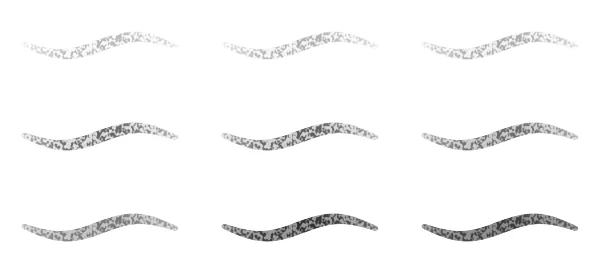
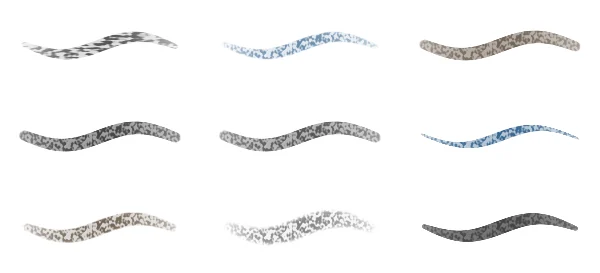
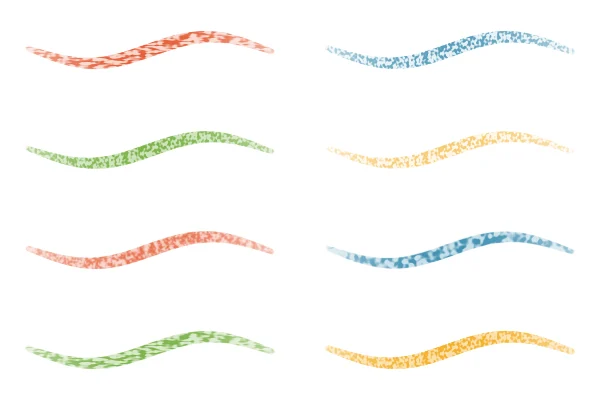
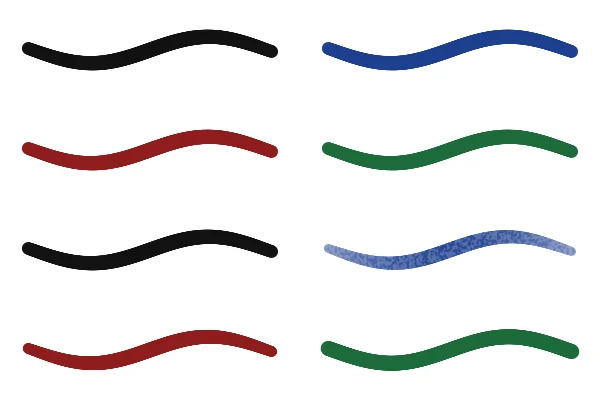
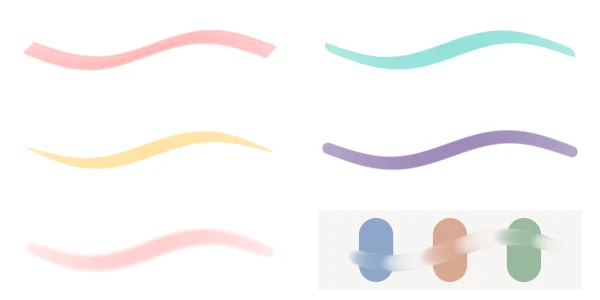

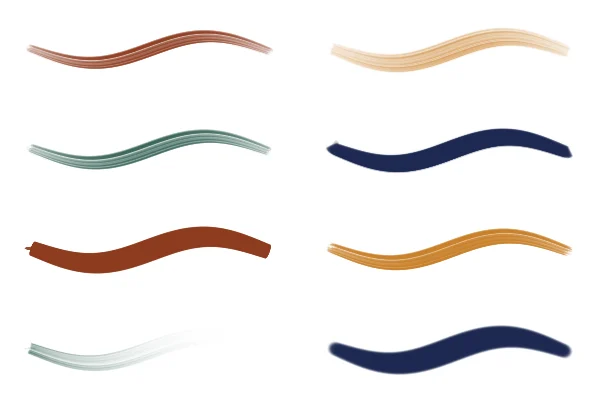
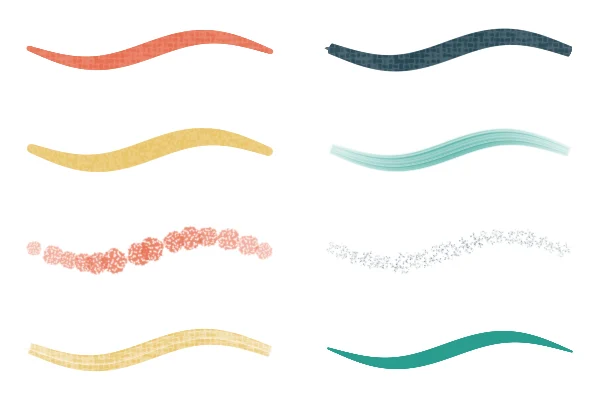
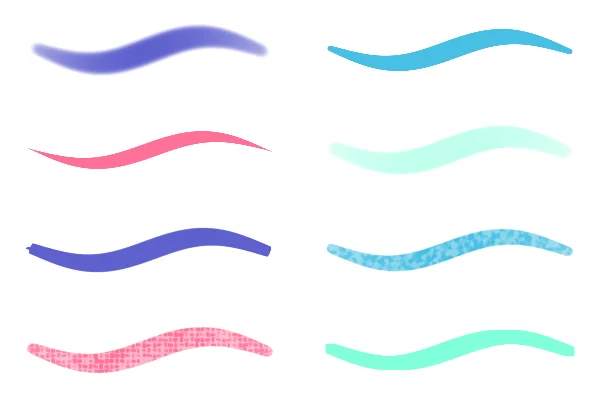
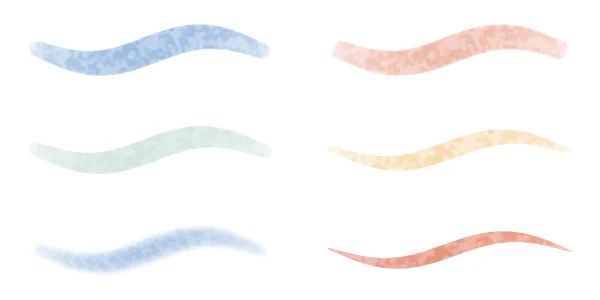
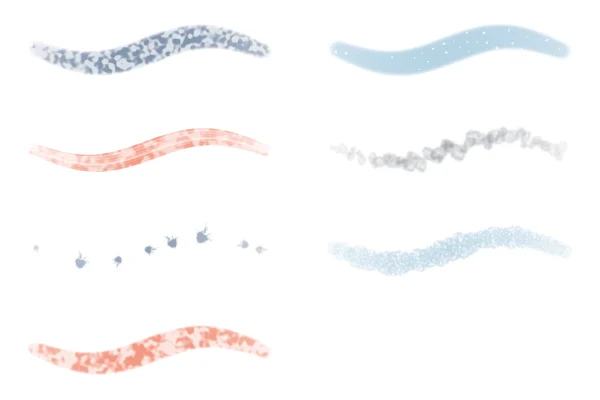
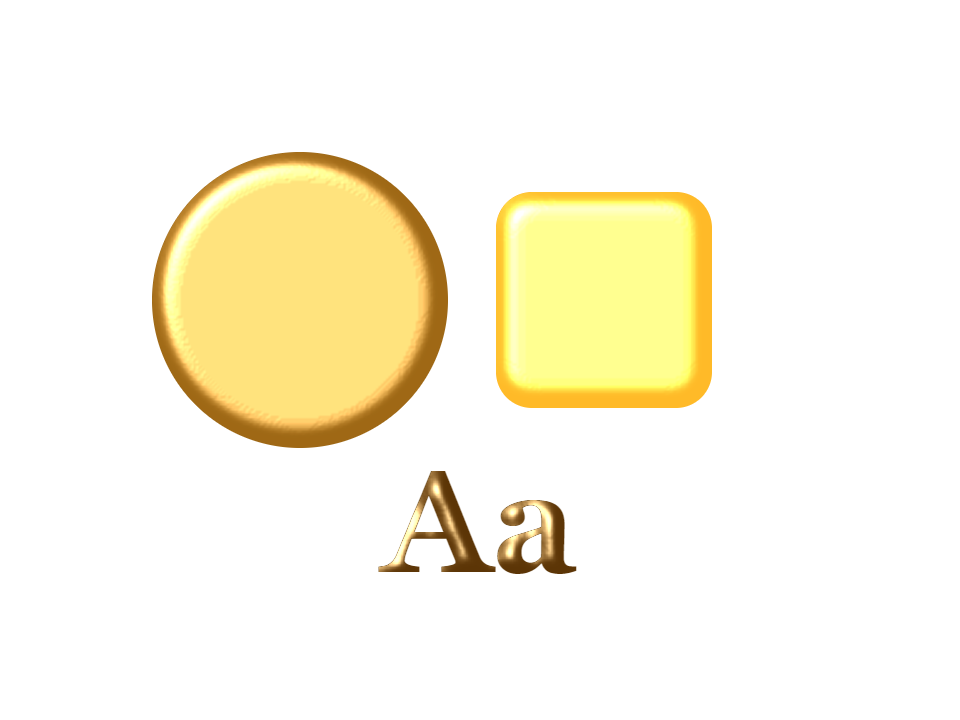

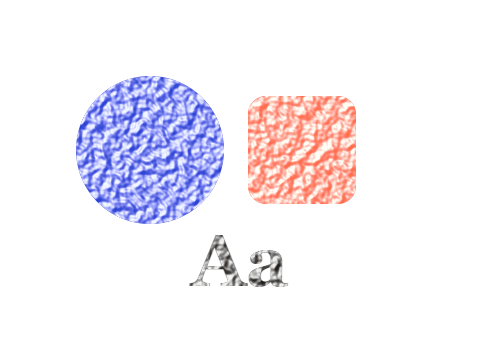




































7,622 premium items carry a Pro badge. Place them in any design; exporting one asks you to go Pro or start the trial.
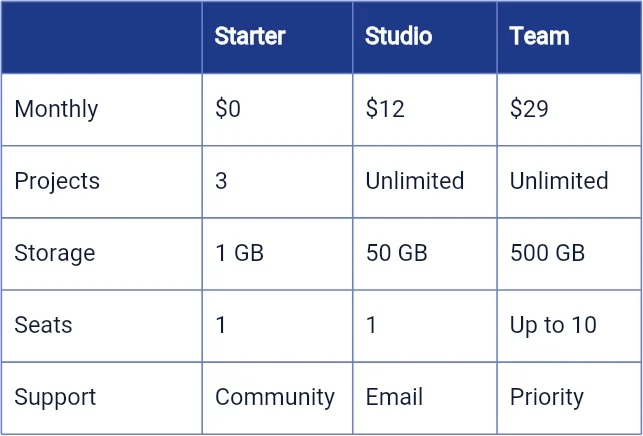
Design and Vector free · Try Pro for 14 days
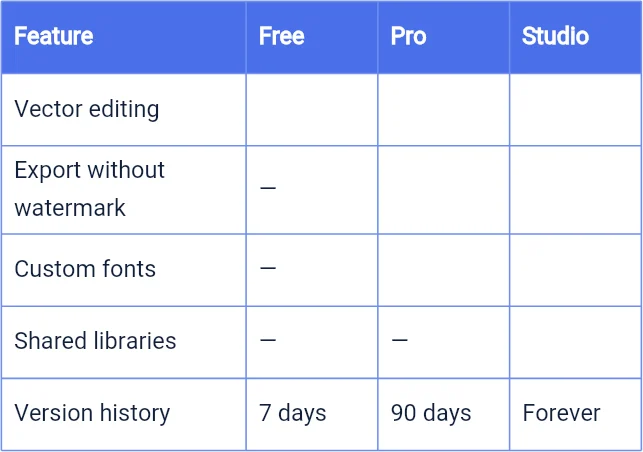
Free
- Design and Vector, every tool
- A limited set of free templates and assets
- Unlimited PNG, JPG, SVG and WebP export
- Limited cloud storage
- 5 cloud files
- Premium assets on view, with a Pro badge
Pro
or $72 a year, save 25%
- Everything in Free
- More cloud storage
- Unlimited cloud files
- High-resolution export
- Transparent background PNG
- PDF export
- Every premium template and asset
- Agent Connect
Featured at